
On the Personal Data page, you collect the employee's name, identity, and contact details. Here you can also see information about app invitations and manage the profile photo. Ensure the information belongs to the correct employee before saving or sending an invitation.
The data is used in several places within Timeplan. A correct employment number helps link the right employee to the payroll basis, while the email address and card number are needed for various ways to access the app or clock in. If a detail needs to be changed, it is therefore advisable to check the function where it is used.
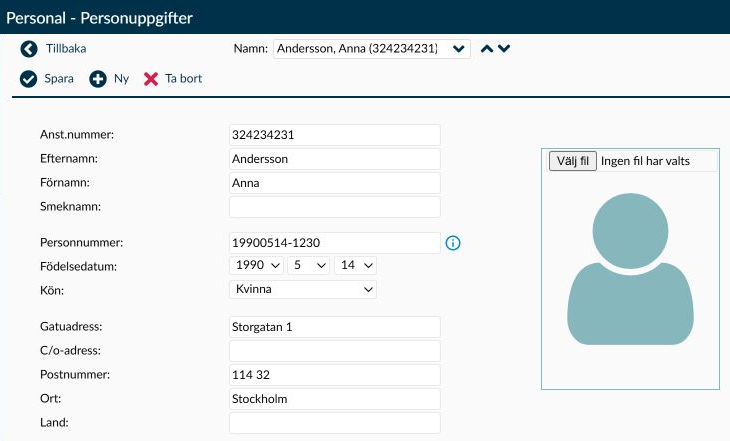
Figure 1. Identity and contact details are displayed alongside the profile photo. Further down are the app status and the employee's chosen notification method.
Employment number is used, among other things, for payroll transfers and personnel reports. Ensure it corresponds to the correct employee in the payroll system, especially before the first transfer or when reusing an old number.
- When automatic numbering is enabled, Timeplan suggests a number for a new employee. The suggestion itself is not a check against your payroll system.
- The number can contain up to 15 digits and must follow the numbering rule set for the company. If a number is rejected even though it contains only digits, this rule should also be checked.
- When your setting explicitly prohibits duplicate employment numbers, Timeplan blocks a number already used by another active employee. Without that setting, the same check is not performed. Therefore, verify the number even if it can be saved, and do not switch to an arbitrary number just to bypass an error message.
Last name and First name are required to save the employee. If you use a different preferred name, you can enter it in Nickname, which is also used when searching on the Personnel page.
These name fields allow up to 50 characters each, and Nickname allows 15. Pay special attention to very long or compound names to ensure the information remains understandable if it needs to be shortened.
Personal identification number follows the national format used for the employee. Timeplan can extract birthdate and gender from the supported Swedish, Danish, Finnish, and Norwegian formats. Nonetheless, verify the entered information, especially if the number has been corrected.
Swedish personal identification numbers can be entered with ten or twelve digits. The field holds up to 15 characters. Do not replace the employee's actual personal number with another value if the format is not accepted; first check that the data has been entered correctly.
If the employee lacks a personal identification number, the reserved value 00000000-0000 is used. This value is exempt from duplicate checks and is not used to find a previously deleted employee. Therefore, search for the employee using other details before creating a new record.
The duplicate check functions differently depending on your scope:
- Check across the entire Timeplan environment compares against other active employees, even in other companies. Such a hit will block saving.
- Company-specific check compares against active employees with an employment contract linked to the chosen company. Previous or future contracts are also considered in this scope. A hit within the company blocks saving. If the same personal number exists with an active employee in another company, a warning is shown, and saving can continue.
- If only one company is active, the check across the entire environment is applied even when a company-specific check is selected.
- If duplicate checking is disabled, this check will not produce conflict messages. However, this does not mean you should create multiple records for the same employee.
Read any duplicate message before proceeding. Using another personal number or the reserved value to bypass the message may separate the new registration from the employee's existing history.
Birthdate is entered with separate selections for year, month, and day. The day list also shows dates that are not valid in the chosen month, so verify the combination forms a valid date. The year list covers from 10 to 99 years before the current year; if the correct year is missing, do not substitute it with an incorrect birth year.
Under Gender there are options Male and Female. The option Not selected is available when the personal identification number is not mandatory, when creating an employee, or when the existing employee lacks a gender selection. If required, Not selected cannot be used as a final value. The Gender field does not disappear solely because the Personal ID field is hidden.
Contact details needed for verifying the employment contract must be completed before the contract can be finalised. Therefore, address or phone number may be required even if you do not use the information during daily scheduling.
Use Mobile number for the employee's mobile and Other phone number for a different contact phone. Ensure the number reaches the correct person before using it for messages. The SMS information further down the page applies only to Swedish phone numbers; storing a foreign number does not imply SMS messages will be sent to it.
Street address, C/o address, City, and Country each allow 50 characters. Postal code and both phone fields allow 20 characters each. If a detail is too long, shorten it in a way that still allows reaching the employee.
Email is optional as personal data but must be filled in and valid to send an app invitation. The address may be up to 100 characters. Save any changed address and verify it again before inviting the employee: the invitation uses the saved address, not a change still present only in the form.
With the Legacy module, the email address is checked against active employees within the company. Without the module, the check is performed across the entire Timeplan environment. If an address is already in use within the applicable scope, you must clarify the connection rather than use someone else's address as a replacement.
Card number/code is used to identify the employee when clocking in. The value can contain up to 100 digits and should be unique among active employees. Check the card or code before changing it, so that no one else loses or gains an incorrect connection.
If the same card number exists for a deleted employee, the current version clears the old linkage during validation and then displays a message. Do not expect to choose Cancel before this change happens. Verify the card or code is truly intended for reuse.
Latest clocking helps you view the last recorded direction and time. It is not a field for correcting a clocking. Instead, open Clockings and balances if the registration needs to be investigated.
- Mobile app shows Invitation sent with the date and time when such a send was recorded. Otherwise, a dash is shown. This information does not indicate if the employee has activated or started using the app. An older sent date could also remain after a later failed attempt, so always check any error messages.
- Web app may display Activated when the employee has a registered login according to the login method you use. Otherwise, a dash is shown. It does not indicate when the employee last logged in.
Notification method shows the employee's own choice and cannot be changed here. The employee selects notification type in the app. The information below the fields states that push notifications are sent when the app is activated, and SMS messages are only sent to Swedish phone numbers.
If Timeplan support requires the employee's internal identity, you can display the information box near the text below the app information. There you find the employee's internal ID. This is a different data item than the Employment number and should not be used as a substitute for the payroll employment number.
This section describes actions when selecting the page's photo, invitation, and removal functions. Read visible warnings before starting, as not all actions wait for the page's Save.
When you choose a photo file, uploading starts immediately without first choosing Save. Valid personal data are saved before file size is checked. Even if the photo is later rejected for being too large, other changes may already have been saved. Verify the entire form before selecting the image.
The Send invitation function does not always show a confirmation in the current version. Therefore, verify the saved email address before selecting the feature, even if you only intended to check the recipient.
Removal disconnects app access and external logins and also deletes certain messages and personal data. If the employee is only leaving your organisation, first check what needs to be ended on the Employment Contract page. Do not use Remove solely to change an end date.
Use a photo that depicts the correct employee and that you intend for the personal record. JPEG/JPG, GIF, and PNG are supported, with a maximum file size of 1.5 MiB.
- Verify the correct employee is shown and the remaining details on the page are ready to save.
- If a photo is already displayed, you first need to use the function to remove just the photo. Removal occurs immediately and does not wait for the page's Save. So ensure you have the new photo available before deleting the old one.
- Use the photo file selection and choose the verified image. Selecting the file starts uploading.
- Check that the correct photo is shown afterwards and the personal data still match.
- The image proportions are maintained when the photo is displayed. Without a photo, a standard image corresponding to the gender information is shown. If you have removed the old photo and uploading the new one fails, the old photo will not automatically reappear.
- Use a known and verified image file. Just because the file can be uploaded does not mean Timeplan has verified its security.
- Removing the photo itself is separate from Remove in the page's toolbar, which applies to the employee. Check which function you are using before continuing.
Use this function when the selected employee should gain access to the app you use. It applies to the employee on this page, not a selection of multiple employees.
- Ensure the employee is saved.
- Verify the saved Email address. Choose Save first if you have changed it.
- Select Send invitation only when you are ready to send.
- Read any warnings before confirming, then check the updated app information on the page.
- The function requires that the employee is editable and has a valid saved email address. Additionally, you need to use the mobile app or web app login with OpenID Connect, which allows a shared login service to manage authentication.
- With OpenID Connect, the dispatch goes via the web app's invitation flow with a link to reset the login.
- With the regular mobile app invitation, the previous activation is restored when a new send succeeds. Therefore, do not send repeated invitations just to test the function; first verify what the employee needs help with.
- A warning that a previous device will be deactivated is based on a previously registered mobile app invitation. The warning itself is not proof that the employee has activated the app on a device.
- Using this function also clears the employee's existing calendar subscription link. The previous subscription may stop working even if the invitation itself does not arrive. Inform employees using calendar subscriptions that the link may need renewing.
- Do not assume the page blocks a new dispatch just because you recently sent an invitation. Check the address, error messages, and which dispatch the employee actually received before trying again.
First, search on the Personnel page, including employees without an active employment contract. An employee without a current contract is not the same as a deleted employee, and you should not replace an existing record with a new one unnecessarily.
If you save a new employee with a personal number that exactly matches a deleted employee, you will be offered reactivation. Verify the identity before confirming. If you decline, the action is cancelled without saving a new employee.
- Reactivation opens the existing employee's stored data and history. Data you recently entered for a new employee are not automatically copied over, so verify the contact details afterwards.
- If the employment number conflicts with another employee, the reactivated employee receives a new number that is higher than the highest employment number among active employees. Conflict checks also include other deleted employees, but the new suggestion is not a guarantee that the number is free in all history or payroll systems. Check the number before further use of the record.
- If the saved email address is used by an active employee, it is cleared upon reactivation. This can happen without a specific warning. Check the Email field even if no message appeared; the comparison includes the entire Timeplan environment, even with the Legacy module.
- The reserved personal number 00000000-0000 is not used for reactivation. If several deleted records match the same true personal number, do not guess which history belongs to the employee.
Timeplan blocks removal if the employee has an employment contract valid today or starting today or later. Check both ongoing and future contracts on the Employment Contract page before deciding what to do.
When removal is performed, the identity remains as deleted in Timeplan, but several links are cleared:
- App identity and external logins are disconnected, so removal affects app access.
- Current messages, time bank periods, percentage salary lines, and personal account intervals are deleted. Removal therefore should not be used as a temporary marker.
- Stored RFID data for identification are cleared.
- Historical employment contracts, workdays, and log events remain. The action is thus not a complete erasure of all history.
- The event is recorded in the Event log.
Personnel helps you find existing employees before creating or changing anything. The process of adding a new employee differs between New on Personal Data and the Add employee dialog. They are not the same registration flow.
When using Personal Data for a new employee, the record must be saved before other personnel pages can be used. Then continue to Employment Contract to verify the contract dates, collective agreements, and duties. Just the name of a collective agreement is not enough to determine if it is correct for the employee.
The card number identifies the employee, but which terminals the employee may use are managed on Supplementary Information. Therefore, check both the identification here and terminal choice there if the employee cannot clock at the correct place. Bank account details are also managed on the other page; they should not be entered in any contact fields here.
A special integration adaptation may lock parts of the page because some details are managed in another system. This is not a general rule for all integrations and is not the same as your administrator profile only having read permissions.
In this special protected mode, Nickname, address fields, Mobile number, and Email can still be changed. Photo functions and app invitations also retain the availability their individual conditions allow. Other identity fields and Other phone number are covered by the protection.
Check first with whoever is responsible for the integration where changes should be made, so a local correction does not conflict with your handling of core data. In the special protected mode, a temporary unlock request may be opened by holding down Ctrl and clicking on the page. This is not a change of integration settings or your permissions.
If you confirm the unlock, it only applies to the open page and also makes New and Remove functions available in that mode. When the page reloads or opens again, the protection returns. Do not unlock the page just to investigate why a field is locked; start by checking which system is responsible for the data.
Personal number, Birthdate, and Card number/code may be hidden by your settings. A hidden field should not be filled in on this page. If you expect to see it, ask the person responsible for your settings to verify how the data should be handled. Gender has a separate rule and is not hidden just because Personal number is hidden.
Read the message and first check the data it points to. Common reasons are missing required values, invalid birthdate, or conflicting employment number, personal number, email, or card number with another employee.
Also check your company’s numbering rules. Do not randomly change identity details to make saving succeed, as the data are also used for payroll, clocking, and login.
Check that the employee is saved, editable, and has a valid saved email address. The app function must also be available in your environment. Distinguish this page’s function from inviting multiple employees on the Personnel page; the conditions for those flows are not identical.
On reactivation, the old employee’s data is used. A conflicting employment number is replaced with a new number based on the active employees’ numbering series, and an email address used by an active employee is cleared. Check and correct both details before sending an invitation or using the employee in payroll.