
On the Accumulated Balances page, you track an employee's time and selected account balances for a chosen period. The row Accumulated summarises the interval, and the monthly rows show how the values are distributed. Always check the dates and which accounts are included before comparing the results with another view.
Here you get a consolidated overview without first creating a report. You can display worked time, planned time, and base schedule hours together and see additional accounts selected for the compilation.
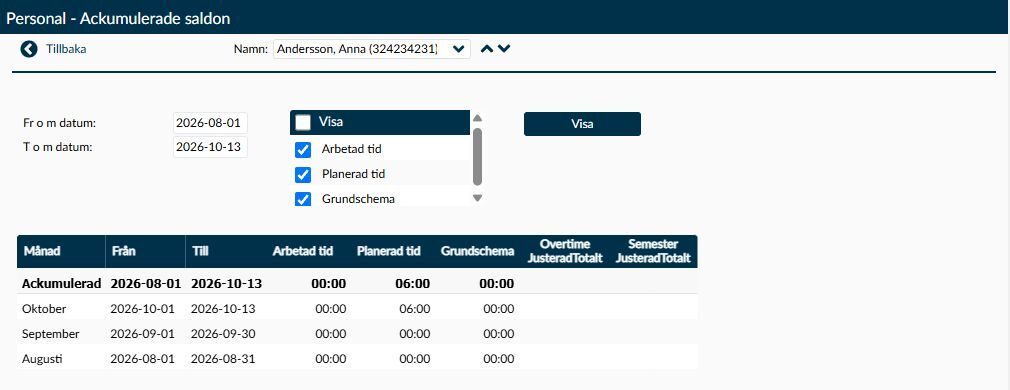
Figure 1. The top row sums the entire selected interval. The rows below show one month at a time; the account names in the example are not a fixed list of which accounts all customers have.
Monthly rows are shown with the most recent month first. If the interval starts or ends mid-month, that row only contains the selected days. Therefore, use the row’s dates, not just the month name, when comparing with a monthly report.
Enter the first and last date of the period you want to examine. The From Date must not be after the To Date. The date pickers limit common selections to today’s date or earlier.
Timeplan’s suggested start date considers several different boundaries:
- The start of the employee’s most recent continuous chain of employment contracts.
- The day after the latest annual working hours or time bank period.
- The start date set for your Timeplan environment. If such a date is missing, a boundary five years back from today’s date is used.
The latest of these boundaries is used as a suggestion. There may therefore be older employment history not included in the first period you see. Check whether the suggested period matches what you want to monitor.
The end date normally defaults to today’s date or the end date of the latest contract if the contract ended earlier. However, known cases exist where a future time bank boundary or a future system start date causes both date fields to have a future suggestion. Adjust the interval before interpreting the results; a pre-filled date is not in itself a check that the period is appropriate.
Under Show, tick which of the three standard time columns should be included in the table. All three are ticked when you do not yet have a saved choice. The selection is saved for your administrator when you use the Show button and carries over the next time you open the page.
- Worked Time sums approved balances on accounts in Accounts for calculation of Worked Time in reports. The account selection is managed on the System Account Groups page under Agreements. It is therefore not a direct summation of the time between all clock-ins and clock-outs.
- Planned Time is based on the working shifts’ time minus breaks. Both regular and extended planned time are included according to the shift type selection on the Shift Types page under Agreements. Absence is not added as a separate supplement here. An absence shift contributes only if its shift type is included in the selection.
- Base Schedule sums the normal hours that have already been calculated and saved for the employee’s days. The page does not recalculate the schedule template when you open it. Therefore, the value may differ from both the current schedule template and the actual work shifts.
Worked Time uses the approval status of the balance entries. Entries that do not require manual approval may also be included, so the sum is not proof that every time report has been authorised. Planned Time and Base Schedule do not have the same approval filter. They can be displayed even when balances corresponding to worked time are not yet included.
Worked Time and account balances are summed for the selected employee and period without a separate company selection in this summary. Check this especially if the employee works in several companies and you compare with a report for only one of them.
Besides the time columns, active remaining accounts chosen in the setting Accum. balances – list of accounts to be shown are displayed. The account name becomes the header for two columns:
- Adjusted contains more than the administrator’s manual corrections. In the current version, imported balances, entries from period reconciliation, and balances the employee has reported themselves may also be included. This depends on how the entries have been registered and whether they are among the approved balances. Therefore, do not use this column as a list of only the administrator’s changes.
- Total shows all approved balance entries on the account for the current interval.
Adjusted is part of Total, not an addition you should add on top of the total. The column shows the full value of the marked entries, not just how much an administrator changed them. For example, if an entry has been changed from 7 to 8 hours, its contribution is 8 hours, not the difference of 1 hour.
An included account may remain as a column group even when no balances exist for the employee. In that case, the Adjusted and Total cells are empty. The account name being shown does not therefore mean that the employee has a value on the account.
Total refers to entries within the selected interval. It does not automatically add an opening balance from the time before the From Date. An account with the word "accumulated" in its name does not change this date restriction.
Time values are shown as hours and minutes. A sum can be longer than 24 hours and can have a minus sign. A time value of zero is displayed as 00:00, while an empty account cell means there is no balance to show.
Seconds are rounded to the nearest minute, with 30 seconds rounded upwards. Numbers and amounts are displayed as whole numbers on this page. Therefore, do not use this view to check amounts in cents or times in seconds.
If the From Date is after the To Date, the current version can display an empty table without a clear error message. Therefore, always check both dates before searching for missing clockings or changing balances.
- Verify the correct employee is displayed.
- Enter the From Date and To Date for the period you want to track.
- Tick the desired time columns under Show.
- Select the Show button and verify the dates on the Accumulated row before comparing values.
The table is also built when the page opens and when you switch employee. Therefore, check the interval again after a change; do not assume the same dates suit the next employee.
Show updates the compilation from the data already present and saves your column choice. The button does not recalculate worked balances or base schedule and does not start a new distribution of work shifts. An underlying calculation error is therefore not fixed by selecting Show again.
Worked time and account columns are based on balances that you can investigate on the Clockings and Balances page. If a value seems to be missing, you need to check date, account, and approval stage there.
Do not make a manual correction just to get the numbers in two views to match. Start by verifying that the views use the same period and the same accounts. If an account is calculated from other accounts, the correction must be done on the correct underlying data; a change to a summary account may be overwritten by the next calculation.
On the Calendar page, you see the employee’s actual planning. Base Schedule and Periods shows the connection to the recurring schedule. A change to an individual work shift may therefore not produce the same change in Planned Time and Base Schedule.
A new schedule assignment may also need to be processed before dated work shifts and affected balances are updated. Check the final result before judging a difference between these columns.
The name of an account alone is not enough to determine what is included in it. The account’s calculation rules and its connections to account groups affect how the sum should be interpreted.
If a certain account is completely missing in the summary, the setting Accum. balances – list of accounts to be shown must be checked under Personnel Register on the System Settings page in Administration. Ask the person responsible for your settings or Timeplan support for help with the selection. If the account exists but lacks value, start instead with the employee’s balances and period.
There is a known error in how the page reads this setting. Even an account selection written according to the setting’s instructions can cause the desired accounts not to be shown. If the same account has been specified multiple times, or if a reference is made to an account that does not exist, the error can also prevent the entire page from opening. Describe to the responsible administrator or support if you are missing individual columns or if the page does not open at all. That helps them distinguish a selection error from a problem with employee balances. Do not change balances to try to fix such a display error.
If the employee lacks an employment contract, the date fields are empty and no table is shown. Check that you have selected the correct employee and that the employment information is present.
If dates are filled but the table is empty, first check that the start date is not after the end date. The current version does not always give an error message for this specific mistake.
Worked Time is based on approved balances, Planned Time on the current work shifts, and Base Schedule on normal hours. Absence, changed planning, account selection, and approval stages can therefore cause the values to differ. Investigate the cause on the appropriate page rather than assuming all three should be equal.
A known error can occur when there is an older contract without an end date in the contract chain the page tries to read. If the page does not open, ask the responsible administrator or support to examine the contract chain. Do not change a correct contract end date just to work around the error.
If the problem affects several employees, the account selection on the System Settings page should also be examined. An error in this shared setting can affect the entire page, not just columns for a single account.
No. The approved entries shown in Adjusted are already included in Total. Adding the columns risks counting the same balance twice. Also note that Adjusted in the current version contains more types of entries than just the administrator’s manual corrections.