
On the Administrators page, you manage those who will work in Timeplan’s administration interface. You can see which administrators exist and adjust their access according to their role, for example, which parts of the organisation they will work with and which time reports they are authorised to approve.
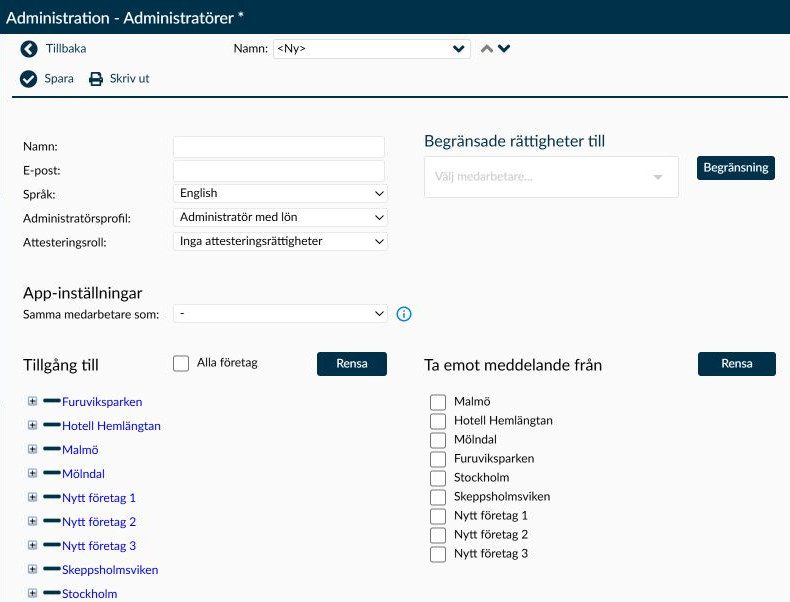
Image 1. A new, unsaved account with basic details and employee restriction at the top. Below the app connection, there are separate selections for access and received messages. The company lists show test data.
The overview shows the administrator’s name, email address or username, administrator profile, and company. When Show all administrators is not checked, administrators linked to the current company as well as those with access to all companies are shown. Tick the box if you need to find an administrator belonging to another part of the organisation.
The Print button opens the administrator report. The report follows the same selection as Show all administrators, so check your filters before opening it.
An administrator needs both a profile and access to at least one company. The profile determines which pages and functions the person can use. The companies and job functions determine which part of the organisation the person is allowed to work with. Review both when someone receives a new assignment.
Name and Email are mandatory when standard Timeplan login is used. The name can contain a maximum of 50 characters and the email address a maximum of 100 characters. The email address must be valid and not already used by another administrator.
If the organisation uses central directory login with Active Directory, Username is displayed instead of Email. The username is also mandatory, must be unique, and can contain up to 100 characters. In the current product, error messages may still mention Email when it is the username that is missing or too long. In such cases, check the field that is actually displayed on the page.
With Language, you select the language the administrator will see after their next login. The list uses the configured English and Swedish language options, shown as English and Swedish in the demo environment.
Administrator profile specifies which pages and functions are available. Profiles themselves are managed on the Administrator profiles page. Your own permission level restricts which profiles you can assign:
- Timeplan Support can assign profiles at all levels.
- A super administrator can assign profiles at the super administrator, administrator, and other levels, but not Timeplan Support.
- An administrator can assign profiles at the other level. This applies even when modifying an existing account at the same level as their own.
- The other level does not permit assigning any new profile level. When editing, the chosen administrator’s existing profile remains in the list.
The profile name does not need to be the same as its permission level. Therefore, check the profile settings when assessing the access it grants. New is not available for the other level and requires at least one assignable profile for the other levels.
It is not always enough that you can see an account in the overview. Both your permission level and the scope of your organisational selection affect whether you may modify it:
- Timeplan Support can modify administrators at all levels. A super administrator can modify other super administrators, administrators and other-level accounts, but not Timeplan Support.
- If you are an administrator and have All companies, you can modify administrator or other-level accounts. An other-level account with All companies can only modify other other-level accounts.
- If you are an administrator without All companies, you can only modify other-level accounts whose entire organisational selection fits within yours. An account with access to all companies cannot be modified through a more restricted selection.
- If your own account is other-level without All companies, you cannot modify other administrators’ accounts. Ask an administrator with proper permission to assist you.
- For a restricted organisational selection, each chosen job function must be included in your access. If the other account has all job functions within a company, you must also have that access. Sharing a few job functions is insufficient.
If you are not permitted to modify the account, the warning You do not have permission to modify this administrator due to limited user rights. appears. Ask someone with the right permissions to make the changes. Do not create a new account to circumvent the restriction.
Under Access to, select the companies and job functions the administrator should be able to work with. At least one company must be included. If the installation has only one company, All job functions is shown instead of All companies.
Select All companies only when the person genuinely needs to work across the whole organisation. Otherwise, you can expand the company tree and make a more limited selection. This selection affects which employees, rosters and report data the administrator can see and edit.
Check the selection after an organisational change. A profile with extensive function rights does not automatically grant access to all companies.
Under Receive messages from, select which job functions the administrator should follow for certain automatic messages. This area is visible when the Personnel & Administration module is active. It is a separate selection and must be checked even if the organisational access is already correct:
- The selection is used for automatic messages about Errors in balance calculations and On a birthday, when the message is set for administrators. The event must first occur for an employee with a relevant employment contract on a selected job function. The selection does not mean the administrator receives a message for every clocking error or deviation code.
- The reminder Unprocessed actions X days after payroll period also uses the selection. To send a reminder, the administrator must also have correct page access and there must be affected time reports, errors or approvals left to handle.
- When an employee changes relevant personal details in the employee interface, the job function on the primary employment contract is used to find recipients. If no detail has actually changed or the employee lacks a primary contract, no notification is generated.
- Manually written messages are not affected by this selection. They are sent to administrators, employees, or departments chosen by the sender.
Settings for automatic dispatch are managed on the Automatic messages page. Older saved settings may also send On selected date messages to administrators through the same selection, but this recipient type is no longer selectable for that message type in the current interface. Ask support to check old settings if such dispatch needs explanation.
Clear empties the current company and job function selection in the area where you use the button. Under Access to, it clears the access selection; under Receive messages from, it clears the message selection. Changes take effect only after you choose Save. The button under message selection does not clear the list of restricted employees.
Approval role is a separate choice from the administrator profile. The role must be higher than the role of the employee whose time is to be approved:
- No approval rights means the administrator cannot approve any employee, regardless of their role.
- Department manager can approve regular employees but not other department managers or approval officers.
- Approval officer can approve regular employees and department managers but not other approval officers.
The role is not an independent permission to approve everything. The administrator must also have suitable organisational access, the period must be open, and the employee must not be subject to a relevant restriction under Limited rights to.
The employee’s role for comparison is taken from the position on the applicable employment contract, not from the Same employee as link. The Department manager role is managed on the Positions page. Without a position, the person is treated as a regular employee. If multiple employment contracts apply during the pay period, the highest position role among them is used. Check both the position and contracts if an approval is unavailable despite the administrator’s role appearing correct.
Here you select the employees to whom the restrictions in the Restriction dialog apply. The selection does not mean the administrator can only work with these employees. Regular access is still determined by profile, company, and job functions.
For example, to prevent the administrator from changing a certain employee’s employment contract, that employee must be selected here, and Block changes to employment contract must be ticked in the dialog. Other employees are not affected by that individual restriction.
The five restrictions are initially checked for a new administrator but have no effect until at least one employee is selected under Limited rights to. Check both the employee selection and checkboxes before relying on a restriction.
When an administrator also works as an employee, use Same employee as under App settings to link the two accounts. This allows Timeplan to recognise the same person at the next app login. The employee’s usual pages remain, and the administrator functions they are entitled to are grouped under Administrator functions in the app.
The link does not grant access to the full administration interface and does not replace existing permissions. The following functions in the app are involved:
- Approve time reports appears when the employee has full app access through their employment contract and the linked administrator profile grants at least read rights to the Time report approvals page. The link itself does not confer the right to approve; profile rights and other approval conditions still apply.
- Reports appear when the employee has full app access and at least one app report is enabled in app settings and supported by your licensed modules. It is the employee’s app access, not the administrator profile, that determines if the function is shown. The link places it under Administrator functions.
- Presence list follows the employee’s app access. To be shown, the employee must have full app access, the report for Weekly overview be enabled, and Scheduling module Basic be licensed. The administrator profile does not add or remove this menu item.
The list Same employee as contains employees within your access area who are not yet linked to another administrator. Choose - to remove the link. Changing the link does not alter the administrator’s profile, organisational access, or approval role, nor does it change the employee’s employment contract or app access.
Ask the person to log out of the app and log in again after a change. An ongoing app session retains the account links effective at login, so the new or removed link takes effect only at the next login.
The App settings area has no additional licence or settings conditions on this page in the current version. This does not mean that all app functions are available: the above conditions must still be met.
Always check the account and permissions before sending an invitation, reactivating an account, or creating an API key. These actions grant access that must correspond to the person’s or integration’s assignment.
A reactivated administrator does not reliably regain their previous profile. The details you just entered for a new administrator are not used during reactivation either. Therefore, verify the reopened account’s details, profile and all access selections before using the account or sending an invitation. A previous setting of All companies may still apply.
The secret value of the key is shown only immediately after creation. Have an approved password manager ready before clicking OK in the Validity period dialog, and do not share the key in ordinary messages or screenshots. Revoking a key takes immediate effect and may stop the integration using it.
In the current version, the Email invitation dialog can open when saving a new account with Active Directory login for the first time, even though the Send invitation button does not show for such accounts. Do not choose Send in this situation. Login should be handled through the organisation’s directory, not a normal Timeplan invitation. Close the dialog without sending and ask Timeplan Support for help if unsure about the account login.
The dialog applies to employees you have selected under Limited rights to. Review the options based on what the administrator should be able to do for these individuals:
- Block approval and leave requests prevents approving the selected employees and blocks related actions for their leave requests.
- Block 'add clocking' prevents the administrator from adding manual clockings for the selected employees. Existing clockings are not deleted.
- Block 'add balance' blocks manual balance functions and makes the employee’s time bank period read-only for the administrator.
- Block add/change shifts prevents adding and changing shifts in day view and scheduling summaries for the selected employees.
- Block change to employment contract prevents the administrator from modifying the selected employees’ employment contracts. The block applies when saving changes, not only when a field becomes locked.
All five checkboxes are initially selected for a new administrator. Only deselect a restriction when the assignment requires the administrator to perform that action for the selected people.
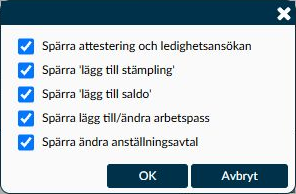
Image 2. The checkboxes indicate which actions are blocked for the employees in the selection, not which employees the administrator has access to.
When the administrator is saved and standard Timeplan login is used, you can send an invitation. The Send invitation button is not shown when login is controlled by Active Directory.
- Verify the administrator’s registered email address and permissions.
- Choose Send invitation. The Email invitation dialog opens, asking Do you want to send an email invitation?.
- Choose Send if the recipient and access are correct. The invitation is sent to the registered email, and the dialog closes upon successful sending.
- Open the administrator to be changed or select New if a new person is to have their own account. First, check that the person does not already exist in the overview; use Show all administrators if necessary.
- Fill in the name and email address, or username if you use Active Directory. Choose language, administrator profile and approval role. Then review companies, job functions and any personal restrictions based on the person’s assignment.
- Choose Save when details and access are correct. If Timeplan instead asks about reactivating a deleted account, read the reactivation section below before confirming. The new form’s entries are then not used in the same way.
- If the email address or username belongs to a deleted account, the question The username belongs to a deleted administrator, do you want to activate it again? is shown. Confirm only if the old account is really to be reused; no duplicate account is created.
- Choosing OK opens the reactivated account. Previously preserved details such as name, language and approval role remain. However, the new values you just entered for a new administrator are not applied.
- The previous profile is not restored. Timeplan instead assigns a profile without a fixed order, so you must check and, if needed, change it yourself. A remaining choice of All companies may still grant broad access.
- Previously chosen companies and job functions for access or messages are not restored. Nor are employee links, external login connections, or the list of employees to whom restrictions apply. Therefore, review the selections again, even if the overall setting All companies remains.
- The restriction checkboxes may still be checked even if the employee list is empty. Therefore, review both the list and the Restriction dialog before using the account.
The Log in button is intended for Timeplan Support. It replaces your current session with a session for the selected administrator and opens the start page. It is not a preview alongside your own account; after switching, you work in the selected administrator’s session.
You cannot delete the administrator account you are currently logged in with. When another administrator is deleted, their access and links to profile, employee and organisation are removed. The deleted account remains in Timeplan and can be reactivated later if the same person should get access again.
If API connection is licensed, the API keys area is shown to Timeplan Support and super administrators when an existing administrator is open. In the Validity period dialog, a new key can be given 3, 6, 12, 18 or 24 months’ validity. Six months is the default. Choose a period that matches the integration’s need and plan how the key will be replaced before expiry.
- Verify the correct administrator is open and that the account’s permissions fit the integration’s assignment. Then choose New in the API keys area.
- Choose the number of Months in the Validity period dialog. Have an approved password manager ready before continuing.
- Choose OK once the validity period is correct. The key is then created, and you must save the secret value immediately as it will not be shown again after the page reloads.
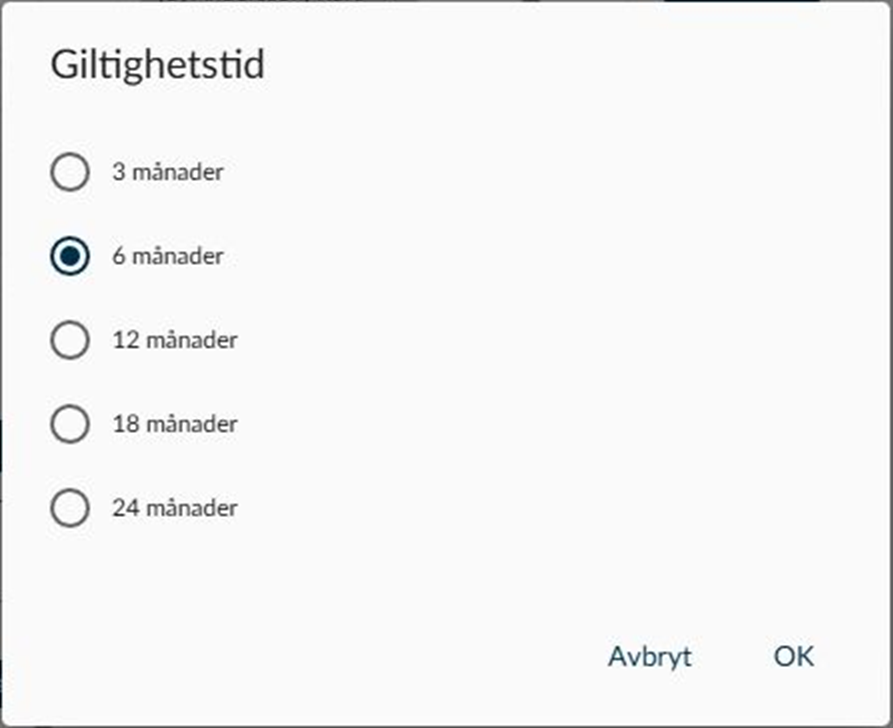
Image 3. In the Validity period dialog, choose how long the new API key should be usable. No key is created until you select OK.
The secret value of the key is shown only immediately after creation. Save it immediately in an approved password manager. After reloading the page, the secret is not displayed again.
In the list, you can track when the key was created, when it expires, and when it was last used. Revoke the key immediately when no longer needed or if you suspect it has been exposed. A revoked or expired key cannot be used to log in via the API.
- On the Administrator profiles page, it is determined which pages, functions and payroll data a profile grants access to. A change there affects administrators using that profile. If only one person’s assignment changes, you must distinguish between assigning a different profile and changing the shared profile.
- Companies and Job functions describe the organisational structure. The selection under Access to on the administrator’s account limits which parts of that structure the person can work with. Check both profile and selection if someone is missing a page or cannot find the correct employee.
- The approval role affects whether an administrator can approve a time report. The position on the employee’s employment contract is included in the comparison, so a changed position can affect who can approve without modifying the administrator account.
- The Restriction dialog can also block certain actions for selected employees, including manual clockings and changes to employment contracts. If a function works for others but not a certain employee, check both the employee selection and active restrictions.
Start by checking both company assignment and administrator profile. The profile controls what functions an administrator can use but does not itself provide access to more companies.
Also check that the correct job functions are selected under the company. If All companies is not available, a super administrator or Timeplan Support must check whether the person’s access should be expanded.
The person may lie outside the part of the organisation you are allowed to manage or have a higher permission level than you can administer. When the page is read-only, details are still visible, but buttons and settings for changes are unavailable.
- API keys require that API connection is licensed, you are Timeplan Support or super administrator, and you have opened an already saved administrator. If working with a new account, it must first be saved.
- Receive messages from is shown when the Personnel & Administration module is active. This is a different condition from the API keys.
App settings have no similar extra licence restriction in the current version. If the area is missing, do not assume an add-on module needs ordering; ask support to check your version and view.