
Here you gather the employee's competences and completed training. Record when the employee obtained the competence and, if it is time-limited, how long it is valid. This provides a basis for follow-up and helps you identify when a training needs to be renewed.
Each record describes a specific competence or training for the selected employee. The competence type indicates which training it concerns, while the dates on the employee's record show the personal validity period.
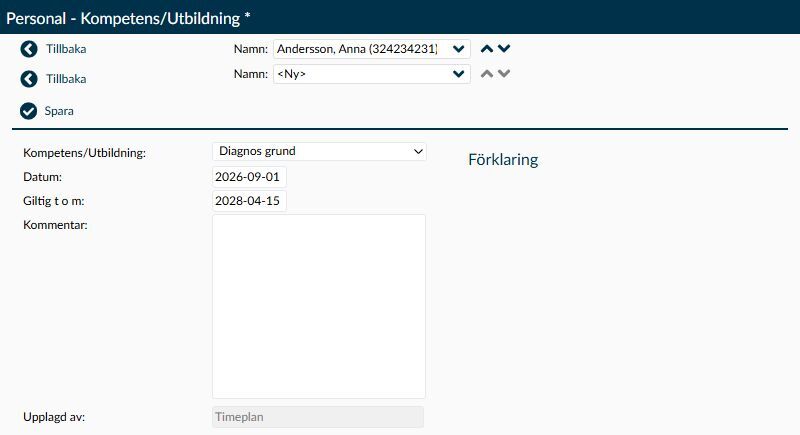
Image 1. The example shows a new, yet unsaved record. The training dates and personal expiry date are specified here; they should be checked even when the type has proposed a date.
A time-limited competence is valid from Date up to and including the Valid until date. A competence without a time limit has no end date. Expired competences and deleted records are therefore not the same: an expired record remains as history, while a deleted record is no longer included in follow-ups.
In Competence/Training you select from the active types set up under Competences and training types. This is where the common explanation and standard validity are managed; here you register that this particular employee has the competence.
Date is the day the employee obtained the competence or completed the training. A new record suggests today's date. If you register a training retrospectively, you must therefore enter the actual date of the training.
For a time-limited competence, you need to specify the last valid day. Check the proposal before saving, especially when the training was completed earlier or when you change the competence type:
- When you choose a time-limited type for a new record and Valid until is empty, today's date plus the type's number of validity months is suggested. The proposal is not based on an older training date you may have entered.
- If there is already an end date and you switch to another time-limited type, the date remains. You must verify that it still matches the new competence.
- If you switch to a type without a time limit, the end date is removed and the field cannot be changed.
- The last valid day may be the same as the Date, but not earlier. Although an error message may say the end date must be later, the same day is allowed.
Changing the standard validity under Competences and training types does not recalculate saved dates for employees. Therefore, check the personal record when following up on validity.
Use Comment for information that helps with follow-up, such as the certificate level or where the training documentation is stored. Avoid sensitive information that is not necessary for this purpose.
Keep the comment within 250 characters. Longer text is truncated when saving in the current function, so important information at the end may be lost without an error message. Check the saved text if you have written a longer comment.
Example: Certificate level 3. Training documentation is on the employee's page Documents.
- Created by shows the administrator who last saved the record. If a colleague corrects the date and selects Save, the colleague's name is displayed, even if you originally created the record.
- Explanation is fetched from the competence type. Read it as general information about the training, not as a personal comment about the employee. If the type lacks an explanation, the area is empty.
Deleting removes the employee's record and also removes it from reports, warnings and competence checks. Keep the record if you need to follow up whether the employee has previously had the competence.
Here is what you need to check when registering or deleting a competence.
The calendar belongs to the date field you have opened. Choose the month, year and day for the training date or the last valid day. Then check both fields before saving the record so that the period corresponds to the training carried out.
Keep in mind that an older training date does not automatically update the proposal under Valid until. The last valid day therefore needs to be checked separately. For a type without a time limit, the end date should be empty.
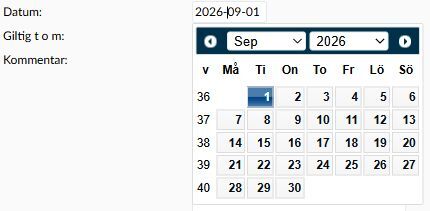
Image 2. The calendar in the example belongs to Date. The same calendar is used for Valid until when the selected type is time-limited.
When a training is completed you need to specify the employee's own dates, even if the competence type already has a standard validity.
- Select New.
- Choose the correct type in Competence/Training.
- Enter the training date under Date.
- Check Valid until for a time-limited type. Correct the date if the automatic proposal does not correspond to the actual validity of the training.
- If necessary, enter a Comment of up to 250 characters.
- Choose Save. Then check that the correct type and validity period are displayed for the employee.
If no competence types exist, one needs to be set up first under Competences and training types. A personal record does not create a new common type.
Use Delete when a record should no longer exist, for example if it was created by mistake. Check both the employee and the selected competence before confirming.
When the record is deleted, it disappears from the employee's list and no longer participates in reports, warnings or checks in planning. The competence type in Administration and other employees' records are not removed by that action.
The page Competences and training types defines the type, standard validity and common explanation. The employee's record however retains its saved dates when the type's standard is changed.
Removing the type itself is not the same as deleting an employee's record. An existing record continues to show the type name and its saved dates even when the type is no longer offered for new registrations.
To see the control in Weekly overview, both the competence type and the view must be set for it:
- On the type, Perform competence check on scheduled employees must be selected. Here you also specify how many employees are needed and during which times.
- In Weekly overview, Show competence check must be selected and the relevant type included in Select competences.
A registered training alone therefore does not trigger the check. Also remember that a deleted type may still remain in a previously selected competence check in the current function. Do not use deleting the type as a way to safely deactivate the check.
In Staff reports you can follow up employees who have, lack or previously had selected competences. The report date determines which validity period is compared. It is therefore important to distinguish an expired competence from a deleted record.
On the Start page, expiring competences are shown when the category Expiring competences/trainings is selected. This includes records with end dates from today up to the chosen number of days ahead and where an employment contract covers the end date. Having the competence registered does not in itself mean that an automatic message is sent.
The list for a new record contains the active competence types. Check the type under Competences and training types if it is missing.
An older record may still show a type that has been removed from the active types. This allows the previous training to be understood but does not mean the type is offered for new registrations.
When switching between two time-limited types, an already filled end date is retained. Therefore, check Valid until and enter the correct date for the new type.
If you instead choose a type without a time limit, the end date is removed and the field can no longer be changed.
The field shows who last saved the record. The name therefore changes when another administrator saves a correction. It is not information about who originally registered the training.