
On the Annual Budget page, you compile the budget for a period and allocate the hours or amount between the work tasks. You can compare the allocation with the total and fetch a proposal from the budget periods of the work tasks.
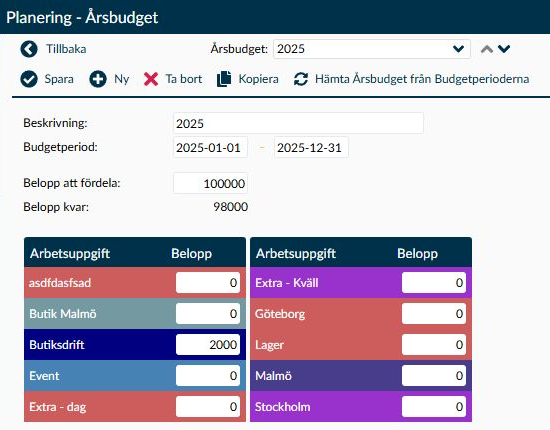
Image 1. The annual budget in the example has a total of 100,000 hours. Of these, 2,000 are allocated to one work task, so Amount Remaining shows 98,000.
The annual budget helps you keep the organisation's budget together and see how much has been allocated to different work tasks. On the same page, you can work with the allocation, fetch a calculated proposal, or use a previous budget as a starting point for the next period.
Keep in mind that the annual budget and Budget Periods serve different purposes. Here you see the total and allocation per work task. Budget periods instead describe how the budget is distributed between days.
- Description is the name that helps you distinguish the budget from other budgets within the same company. The name must be unique even when switching between uppercase and lowercase letters. If the message The name must be unique. appears, check both that a name has been entered and that it is not already in use.
- Budget Period specifies the first and last day the budget applies to. The period does not have to follow the calendar year, but the end date must be after the start date. Therefore, a budget for a single day cannot be saved here.
- The periods must not overlap within the same company. Both the start and end days are included, so even a single overlapping day counts as an overlap. If a budget ends on 31 December, the next must start no earlier than 1 January.
- If you shorten an existing annual budget, all linked budget periods must still fit within it. Otherwise, Timeplan indicates which work tasks and periods need to be changed first on the Budget Periods page.
- Amount to Allocate is the total value of the budget. Enter an integer that is zero or greater. The total cannot contain decimals, even though the allocation per work task can.
- The budget is displayed in hours or currency according to your shared budget setting. Therefore, check the unit before comparing amounts with other documents. In the overview list, the Hours column and the suffix h are used when the budget concerns time.
- Under Work Task, the company’s active work tasks are listed alphabetically. Each row has its own amount, which can contain decimals. If you enter a negative value or text that cannot be interpreted as a number, the row’s value will reset to zero and a message will be shown. Therefore, check the row after such a correction.
- Amount Remaining is the total minus the sum of the work tasks' amounts. The value is recalculated when you change the total or allocation and is displayed with up to two decimal places. You do not change the difference directly but adjust the values on which it is based.
- A negative difference is displayed in red but does not prevent the budget from being saved. This means more has been allocated to work tasks than the total allows. Check the allocation before using the budget, even if Timeplan lets you choose Save.
This section explains how to fetch an allocation, copy a budget, and avoid losing data.
If you delete the annual budget, its linked budget periods will also be deleted. Do not assume that linked periods protect a budget from deletion. First check that neither the annual budget nor the periods are needed.
When budget periods exist, fetching calculates from the earliest budget period’s start month and twelve full months forward. It therefore does not always follow the annual budget’s date interval. Check the months on the Budget Periods page, especially for fiscal years not aligned with the calendar year or when the first budget period starts later than the annual budget. Do not save the proposal as the annual budget’s allocation before confirming it matches the intended period.
Use Fetch Annual Budget from Budget Periods when the allocation on this page should be based on the calculated sums on the Budget Periods page. Fetching replaces the current values for all active work tasks, not just a selected row.
- Select Fetch Annual Budget from Budget Periods and read the message that current values will be replaced.
- Choose OK if you want to load the proposal. Choose Cancel to keep the existing allocation.
- Check each work task’s amount and Amount Remaining. The fetched data is not yet saved.
- Choose Save when you have reviewed the allocation and want to store it.
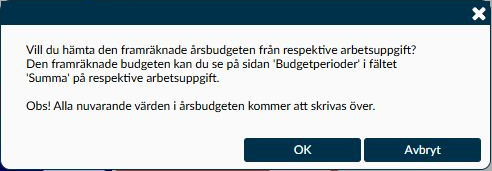
Image 2. The dialog warns that the existing allocation will be replaced. When you select OK, the proposal loads on the page. Then choose Save to store it.
- The sum is calculated from the work task’s budgeted value for each weekday. When multiple budget periods apply on the same day, the one with the shortest date interval is used. If the intervals are equally long, the period starting latest is used.
- For the same annual budget, work task, and unchanged budget periods, the proposal is based on the same calculation as Sum for the current year on the Budget Periods page. Check both the selection and months if the proposal is not as expected.
- The value fetched here is rounded to two decimals, while Sum is shown with one decimal on the Budget Periods page. A small difference between displayed values therefore does not necessarily mean different periods have been used. For example, if the source yields 125.24, Sum will show 125.2, while the proposal here will be 125.24.
- If the budget periods have not changed, a new fetch yields the same amount. Fetching is thus not a method to add more budget on top of the existing allocation.
With Copy, you use a saved annual budget as a starting point for a new one. The function is not shown while you are creating a budget that has not yet been saved.
Note that choosing a copy option creates and saves the copy immediately. You do not get an unsaved proposal to review first. If you only want to view options, exit with Cancel.
- Ensure the correct annual budget is selected before choosing Copy.
- Read the options and choose the one corresponding to how the budget periods should be carried over. Differences between options are explained below.
- Review the new budget selected on the page: name, dates, total, work tasks’ amounts and copied budget periods.
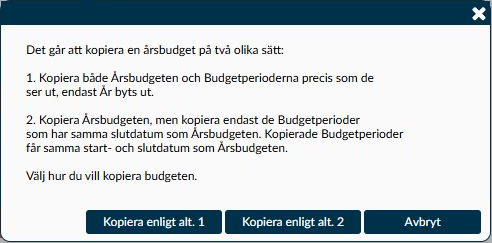
Image 3. Both options immediately save a new annual budget. Cancel closes the dialog without creating a copy.
- Copy Option 1 includes the annual budget and its budget periods. The periods’ dates are shifted to the new year. For short periods of up to seven days, the weekday pattern is preserved, so check the moved dates before using the budget.
- Copy Option 2 includes the annual budget and the budget periods that end on the same day as it. If a work task has several such periods, the one starting latest is used. Each copied period is then stretched over the entire date interval of the new annual budget.
- The new period is added after the latest end date among the company's annual budgets and has the same length as the source budget. It therefore does not necessarily follow immediately after the specific budget you copied, if later budgets already exist.
- The copy gets the source budget’s name followed by the new date interval in parentheses. The name is shortened if it would otherwise exceed 50 characters. Check that it still distinguishes the copy from other budgets.
- Only active work tasks that have not been deleted are included in the copy. If a work task is missing, you need to check its status before assuming the entire older allocation has followed.
Delete applies to the selected annual budget. After confirmation, the annual budget, allocation per work task, and its budget periods are removed.
Always check which budget is selected and what data it contains before using this function. Select Cancel in the confirmation if you wish to keep the budget. Do not use deletion simply to reset an individual amount.
On the Budget Periods page, you work with budgets for different days and compare the calculated total with the work task’s annual budget.
Changes there are not automatically imported as a new allocation in the Annual Budget page. When the annual budget should reflect the new basis, you need to fetch the sums, check the result, and select Save.
On the Weekly Overview page, the budget can be shown as a summary row. Select Show Budget under Settings when you need to compare planning with the budget basis.
The comparison applies to the period and selection of work tasks displayed in the overview. Therefore, check the selection before comparing the total with an annual budget for the entire company.
Work tasks are created and edited on the Work Task page. The Annual Budget shows active work tasks in the selected company, so a new or deactivated work task can change which rows are available to allocate the budget.
The budget function belongs to the Finance Module. Seeing other planning pages does not by itself mean the budget function is available.
Check the date interval and linked budget periods:
- The end date must be after the start date.
- The interval must not overlap any other annual budget in the same company, not even by a single day.
- All linked budget periods must fit within the new interval. If Timeplan lists work tasks and period names, check these first on the Budget Periods page.
Red means the sum of the work tasks’ amounts is greater than the Amount to Allocate. Timeplan does not prevent saving this, so first compare the total with the allocation. Check all work tasks, including those further down the list or shown in another column.
If the allocation was recently fetched from budget periods, also check whether the total still matches the basis you want to use.
No. Fetch Annual Budget from Budget Periods fills the page with a new proposal. Review the values and select Save to store them.
This differs from Copy, where a new annual budget is saved immediately when you choose a copy option.
Copy is only shown for an annual budget that has already been saved. If you are working with a new budget, you must first enter and save its details. Then ensure the correct budget is selected before opening the copy dialog.