
The demand template overview places a demand template on the calendar days. Timeplan then compares the scheduled shifts with the demand and shows what still lacks staffing.
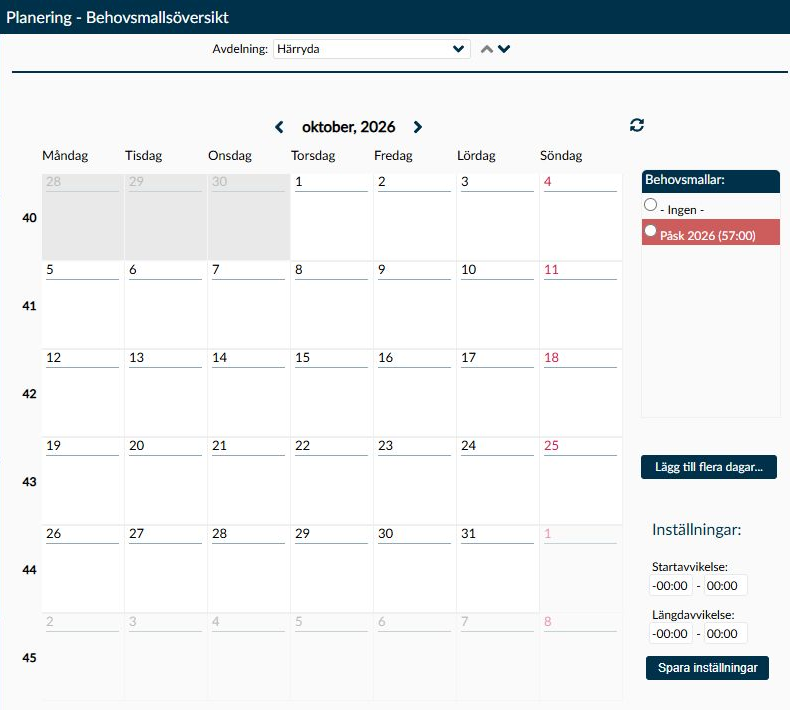
Image 1. The calendar shows October for the selected department. On the right are the demand templates and the time limits used when shifts are compared with the demand.
Here you decide which days a prepared staffing demand should apply to. Timeplan then compares the demand with the shifts already scheduled and creates unstaffed shifts for what is still missing. This helps you see where additional staffing is needed.
You can place a template on a specific day or use different templates for recurring weekdays. The actual content of the templates is prepared on the Demand Templates page.
The list on the right corresponds to the selection shown at the top under Department or Task. When you change the selection, the templates, calendar days, and deviation settings associated with it are retrieved. The type of selection you get depends on whether your demand planning is grouped by department or task.
- The calendar shows six full weeks around the selected month. Days outside the month are dimmed and cannot be assigned a template in that view. Change month if you need to work with those days.
- Days before the start of the first open payroll period are also locked for changes. This protects older planning from being recalculated when you work with a new demand.
- When a template is assigned, its name and colour appear on the day. The same day can have at most one demand template within the chosen department or task; a new selection replaces the old one.
- Sundays and special exception dates are shown with a different date colour. For an exception date, its description appears as a tooltip at the date.
- The date header is a link to Day Overview. Distinguish that link from the calendar day itself, where a highlighted template is placed.
These settings help Timeplan determine whether an already scheduled shift is sufficiently similar to the demand shift. Both start time and length need to be within the selected limits for a deviating shift to count as a match.
- Under Start deviation, the minus value indicates how much earlier the shift can start, and the plus value how much later it can start.
- Under Length deviation, the minus value indicates how much shorter the shift can be, and the plus value how much longer it can be.
- Enter the times in hours and minutes. When the limits are zero, no difference is allowed for that comparison part. If the task lacks its own values, the department's are used; if those are also missing, no deviation is allowed.
A larger allowed interval means more shifts count as fulfilling the demand but reduces precision in staffing control. Base this on the time when the operations really must be staffed.
Example: A demand shift starts at 08:00 and is eight hours long. With Start deviation from −00:30 to 00:00 and no length deviation, an eight-hour shift starting at 07:30 can be counted towards the demand. A shift starting at 08:15 does not, as the allowed later start is zero. The shift retains its own times even when counted as a match. Therefore, you need to choose limits that really work for the operation, not just limits that shorten the list of unstaffed shifts.
Here you get help with assigning demand templates and with the settings that affect the comparison with scheduled shifts.
An assignment replaces any previous demand template for the same date and selection. Choosing - None - removes the assignment and affects the unstaffed shifts the demand has created. When you place a template on the calendar day or choose Add in the multi-day dialog, the change is applied immediately without first needing to select Save settings. The multi-day change is performed day by day. If an error occurs, previous days may already have been changed. Therefore, check the entire selected interval for errors before trying again; an error message does not mean everything is unchanged.
Place a demand template when the same staffing requirement should be used on a specific day. First check the task or department and month, as otherwise the template will be placed in the wrong part of the calendar.
- Select the correct task or department and month.
- Select the demand template from the list on the right.
- Choose the open calendar day where the template should apply. Do not select the linked date header if the intention is to assign the template.
- Check in Week Overview or Day Overview that the demand appears on the correct date.
When a template is added, replaced, or removed, a recalculation for that specific date is queued. Allow time for processing to complete before assessing which unstaffed shifts remain. Already staffed shifts keep their times; they are not moved to fit the template.
If an existing assignment should be removed, select - None - in the page's list and choose the affected open calendar day. Then check the changed demand in the same way as after a new assignment.
This dialog is used when a recurring pattern should apply over a continuous period, for example different demands on weekdays and weekends. Review all seven weekdays, not just the first one you want to change.
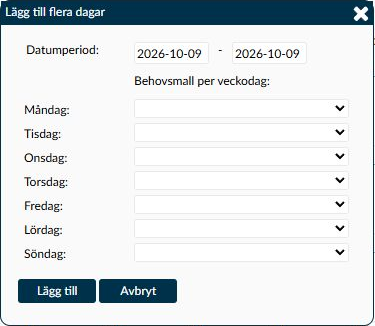
Image 2. In this view, the weekday lists are empty even though a demand template exists in the calendar's list. Do not proceed with Add when you cannot select or verify the intended content.
- Select Add multiple days…. Both fields for the date period suggest today's date.
- Enter the first and last dates for the period. Both days are included; the start date cannot be after the end date, and the period must be open for changes.
- Choose a demand template for each weekday. Note that choosing no demand template means existing assignments for that weekday are removed; it should not be used as a way to leave it unchanged.
- Review the entire pattern and select Add. Then check the affected dates in the calendar and the recalculated demand in planning.
If the lists are empty and the intended template cannot be selected, choose Cancel. Nothing will be changed. Do not continue with an empty pattern you cannot verify.
- The current multi-day dialog fetches templates from the wrong organisational level. When the page is grouped by department it looks for templates for a task, and when the page is grouped by task it looks for templates for a department. This is why the dialog may lack selectable templates even though the intended template appears in the page list. Do not use Add in this situation, as the empty choices remove assignments.
- If Add gives an error message, the change may already have been applied for some days. Check the calendar assignments and demand in planning for the entire interval. Do not assume repeating the same action suffices, as earlier changes are not automatically undone when a later day fails.
Change the limits when you need to adjust how closely scheduled shifts should correspond to the demand. The settings belong to the selected choice, so check the department or task at the top first.
- Enter the four limits under Start deviation and Length deviation.
- Choose Save settings.
- Check upcoming days with assigned demand template when recalculation completes. The new comparison may make more or fewer unstaffed shifts necessary.
- The recalculation applies to assigned dates after today's date within the selected department or task. Today's date, earlier days, and other selections are not recalculated by this action.
- If saving results in an error message, do not assume the new values have started to be used. Note which selection you worked with and check the result before continuing planning.
On Demand Templates you define the template's name, colour, and how many of each shift type are needed. The shift templates are retrieved from Shifts. Here in Demand Template Overview you specify when that demand should apply.
Timeplan first attempts to cover the demand with existing shifts. The comparison is done in the following order:
- Shifts with the same template and exactly corresponding times, length and subshifts are used first.
- Then shifts with the same times, length, number of subshifts and tasks, even if no longer linked to the same template.
- If demand remains, other shifts are compared with the allowed start and length deviations. The smallest length difference takes precedence over the smallest start time difference.
- For each still missing shift, an unstaffed shift is created.
- A scheduled shift retains its times when linked to the demand. Settings do not move the employee’s working hours.
- Shifts already linked to another demand are not used again. A shift for an employee with an absence deviation code for the day is also not counted as staffing the demand.
- If a manually created shift replaces an unstaffed demand shift, the redundant unstaffed shift is removed. The same demand should not remain as both staffed and unstaffed.
Follow up the recalculated demand in Week Overview or Day Overview. Here you see scheduled and unstaffed shifts in context and can continue working with staffing.
Demand shifts in Day Overview cannot be removed as usual shifts. If the demand itself is incorrect, you need to change the template or its assignment, so that demand and staffing remain consistent.
First check that the day belongs to the displayed month and lies within an open payroll period. Days before the start of the first open period are locked. If you only have read access, you can browse and open Day Overview, but not change assignments or settings.
Check the following before extending the deviation limits:
- The shift needs to belong to the tasks the demand covers. Also check start time, length, and any subshifts.
- A deviating shift must fit within both Start deviation and Length deviation, not just one limit.
- The employee must not have an absence deviation code for the day, and the shift must not already be linked to another demand.
- A new assignment needs time to be recalculated before the new result appears.
Already staffed shifts are preserved. Timeplan recalculates the link to the demand and the unstaffed shifts the template has created for affected open dates. Previously planned shifts do not change start or end times just because you change the demand template.
Check the department or task at the top and that the template is active and available within your access rights. The template’s name and content are managed on Demand Templates.
If the template appears in the page list but is missing in the Add multiple days dialog, this may be due to faulty filtering in the dialog between department and task. Choose Cancel. An empty weekday selection means removal, so do not use Add to try to bypass the problem.