
On the Budget Periods page, you determine how much time or money a task can use during different parts of the year. For example, you might have a base budget for a longer period and another for an intense week. The comparison on the right helps you see how the allocation fits within the annual budget.
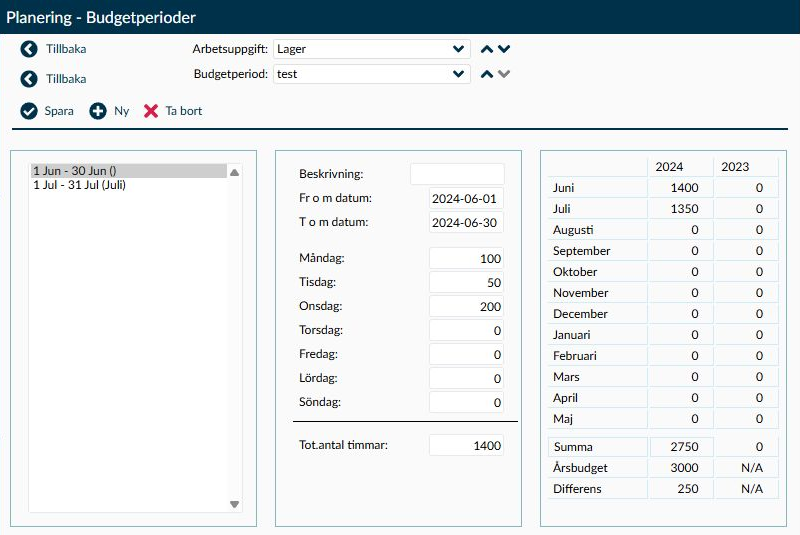
Image 1. In the example, the June period is selected for the task Warehouse. The field Tot.antal timmar shows June period's 1,400 hours, while Summa on the right shows 2,750 hours for the months in the comparison.
Go to Planning → Budget → Budget Periods and select the task you want to budget for. The overview shows the tasks in the current company to which you have access rights. If the company uses departments, you can also see which department each task belongs to.
In the detail view, select the annual budget you want to work with. Then choose a saved period from the list on the left or create a new one. The form in the middle shows the selected period's dates and daily values. The table on the right helps you compare the calculated allocation with the task's annual budget.
Note that the annual budget and budget periods have different functions. The annual budget sets the framework for the task, while budget periods distribute the values over the days. Saving a budget period does not automatically change the task’s amount in the annual budget.
Check Task and Budget Period before you start. Despite the name Budget Period, the selection at the top is the annual budget to which the periods belong. Individual periods are chosen from the list on the left.
- When you open the detail view, the most recent annual budget is selected. If you want to work with a different budget year, you need to select it first. Changing the annual budget loads its periods and comparison values.
- The period list shows start date, end date, and any description. A long description is truncated to 15 characters in the list, but the full description appears in the field when you select the period.
- If there is no annual budget for the company, the message No annual budget created for this company. appears. You must first create it on the Annual Budget page. The period form and buttons New, Save and Delete do not appear until this requirement is met.
Feel free to use Description to make the period easy to recognize, for example Summer Season or Inventory Week. The description is optional and can contain up to 50 characters.
- Enter both From date and To date. Both dates are included in the period and must fall within the selected annual budget. The start date cannot be after the end date, but the same date in both fields is allowed when budgeting a single day.
- You can have periods of different lengths, for example a month, a week or individual days. You do not have to use the same interval for all periods.
- Within the same annual budget, a task cannot have two periods with exactly the same start and end dates. However, intervals can overlap, for example when a particular week has different values than the rest of the season.
Specify how much each weekday can use. A value for Monday applies to every Monday in the interval, not all Mondays together. Timeplan counts how many times each weekday occurs and sums the daily values to the period total.
- The unit follows your shared budget setting. When budgeting in time, the total field is called Tot.antal timmar (Total number of hours). When budgeting in money, it is called Tot.antal kronor (Total amount of SEK). Check the unit before entering values to avoid, for example, entering amounts as hours.
- If the interval contains four Mondays and you enter 10 hours for Monday, the Mondays contribute 40 hours to the period total. Other weekdays are calculated the same way. You can thus adjust the distribution according to days with higher or lower staffing needs.
- You can also start with the total field. Timeplan then distributes the value evenly across the period’s days. This replaces any previously uneven distribution between weekdays. Check the daily values afterwards if, for example, weekends should have a different budget than weekdays.
- When daily values are rounded, the recalculated total may differ slightly from the total you entered. Check the final value in the field before saving.
- When the period spans up to seven dates, inclusive of start and end day, the actual dates are shown instead of weekday names. Monday to Sunday thus gives seven date fields, while Monday to the next Monday shows weekday fields because the period covers eight days. Days outside a short interval are hidden and their values set to zero, so recheck the distribution if you extend the period later.
- If an entered value cannot be read as a number, it resets to zero and a message is displayed. Correct the value and check the total before continuing.
Overlapping periods are not added together for the same day. Instead, Timeplan chooses which period applies for that date. This allows you to keep a longer base period and add a shorter period on top when needs change.
- If several periods cover the same day, the one with the shortest date interval is used. A specific week thus overrides the daily values of a longer seasonal period during that week.
- If two overlapping periods are the same length, the one that starts latest is used. Look at both length and start date to understand which value applies.
- Today's value is taken from the corresponding weekday in the chosen period and counted only once in the comparison’s total. Therefore, you cannot always sum total fields from all individual periods and expect the same result as Summa in the comparison.
The table on the right shows twelve months’ calculated budget along with the comparison for the previous year. Check which months are actually displayed before comparing the sum with the annual budget, especially if you have a fiscal year starting mid-year.
- If budget periods exist, the comparison starts in the earliest budget period’s start month. It does not necessarily start in the annual budget’s start month.
- If there are no budget periods, January to December is shown, even if the annual budget starts in another month.
- If the annual budget starts in June but the first budget period starts in August, the current comparison starts in August. An annual budget with a different start date does not automatically move the comparison to that date.
- Summa (Sum) is the calculated sum from the task’s budget periods for the months in the comparison. When periods overlap, the selection rule above applies so the same day is not counted twice.
- Årsbudget (Annual budget) is the value allocated to the task on the Annual Budget page. This is the comparison’s framework, not an automatic sum of the periods.
- Differens (Difference) is the annual budget minus the calculated sum. A positive value shows how much remains to be allocated. A negative value is shown in red and means the periods’ allocation exceeds the annual budget.
- Monthly amounts are rounded to one decimal place. If the annual budget’s comparison value is missing, N/A may appear. This means the value is not available, not that the budget is zero.
Here are explanations for buttons, dialogs and messages on the page that have conditions or consequences not obvious from the interface.
Start by checking which company, task and annual budget you are working with. This ensures the period is created in the correct context from the start.
- Open the task and select the annual budget that the period belongs to under Budget Period at the top.
- Choose New. The task and annual budget remain, but the form is cleared for the new period. The period list is unavailable while you create it.
- Enter a description if it helps distinguish the period from others. Fill in From date and To date within the annual budget interval.
- Enter daily values or write a total to be distributed evenly. Verify that the unit and distribution align with your budget.
- Select Save. The period is then saved and appears in the list on the left. Afterwards, check Summa, Årsbudget and Differens on the right before proceeding to the next period.
Select the period in the list on the left to load its dates and values. Change any details you need to adjust and choose Save after checking the result.
- When you select Save, the period you are working on is saved for the selected task. Other tasks' periods and their distribution in the annual budget are not affected.
- The change affects the calculated budget for the dates where the period applies. If the period overlaps a shorter period, it may be the shorter period’s value that still applies for some days.
- Saving a budget period does not create or change any work shifts, nor does it trigger recalculation of employees’ hours. The budget is a basis for planning; actual staffing is managed in the planning views.
First check the task, annual budget and selected period’s dates. Choose Delete only when it is the period you want to remove, and read the confirmation before continuing.
- Deleting applies to the selected budget period. The annual budget itself and its assigned value for the task remain.
- If another period covers the same dates, its daily values can begin to apply when the selected period disappears. Check monthly totals and difference afterwards; the result may not decrease by exactly the deleted period’s total.
On the Annual Budget page, you set the budget framework and distribution between tasks. On Budget Periods, you allocate a task’s budget over the days. Changing one page’s values does not automatically change all values on the other.
- If you want to use the calculated period values as the annual budget’s distribution, there is a function Fetch Annual Budget from Budget Periods on the Annual Budget page. It retrieves the task’s calculated sums and replaces the distribution in the form. The proposal then needs to be saved on that page.
- For the same annual budget and task, fetching is based on the same calculation as the year’s Summa shown here, as long as budget periods have not changed. It also inherits the start month from the earliest budget period. Check the comparison’s months before using the sum as distribution for the entire annual budget.
- The fetched proposal is rounded to two decimals, while Summa here shows one decimal. For example, if the calculation gives 125.24, you see 125.2 here and 125.24 in the proposal on the Annual Budget page. Such rounding differences do not mean budget periods have changed.
- Note that fetching includes the annual budget’s tasks, not just the period you recently worked on. Check the new distribution before saving.
- To carry the budget over to the next year, use Copy on the Annual Budget page. Different options exist for which budget periods are copied. Read the description of the options before choosing; the copy is saved immediately.
On the Weekly Overview page, you can enable Show budget under settings. The budget row then shows the budget per day and for the displayed period based on the selected tasks. This lets you use the distribution as support when planning staffing.
Check that an annual budget exists for the company you are working in. Without it, you cannot create budget periods. First create the annual budget on the Annual Budget page, then return to the task on Budget Periods.
The total field applies only to the period you have selected. Summa on the right applies to the months in the comparison table and considers which budget periods apply for each date. If periods overlap, a day is counted only once according to the shortest period or, if lengths are equal, the one that starts latest. Also check the comparison’s start month; in the current view it follows the first budget period, not always the annual budget’s start.
Dates appear when the period covers one to seven days, inclusive of the first and last day. This helps you see exactly which days you are allocating the budget to. Fields for days outside the interval are hidden and their values set to zero. Check daily values again if you change the period so it covers more days.
If a date is missing, the current version may show a message referring to the other date field. If you get such a message, check both From date and To date to ensure neither is empty. Also check that the start date is not after the end date and that both fall within the annual budget.