
A report template collects the accounts you want to monitor and determines the order in which they appear. You then reuse the template when generating an account report.
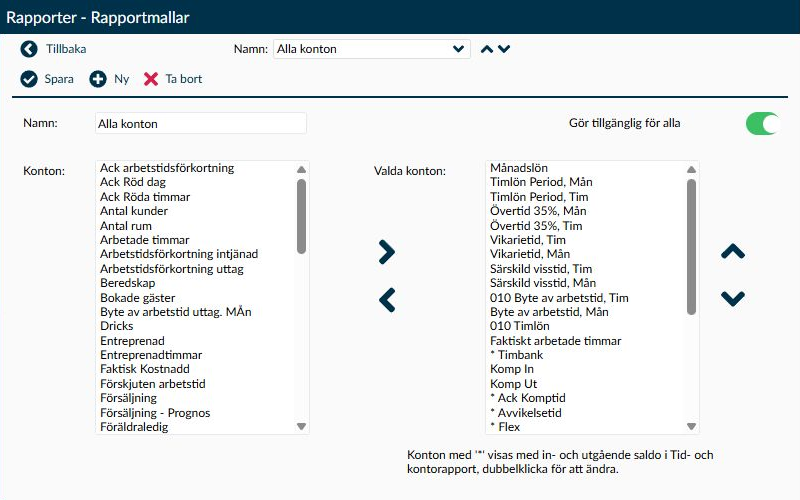
Image 1. The detail page shows the template's name, availability, and which accounts are included. Accounts marked with a star display both opening and closing balances in the Time and Account report.
A report template helps you return to the same account selection without having to rebuild it anew for each report. This makes it easier to track the same information over time and to use a consistent layout when multiple administrators create reports.
You select the template on the Account Reports page for report types that offer a template choice. The template determines which accounts are included and their order; you choose employees and period when generating the report.
- Name helps you and your colleagues recognise the right template when generating a report. The name is mandatory and may contain up to 50 characters. Timeplan allows multiple templates with the same name, but it is recommended to choose names that distinguish the templates to avoid confusion.
- Make available to all controls whether other administrators can select the template. A personal template is only visible to its owner, while a shared template is visible to other administrators who have report access.
- When creating a new template, this toggle is greyed out and cannot be used. The new template is saved as personal initially. If you later change the availability of a saved template, the change takes effect immediately; it does not wait for you to press Save. Changing sharing does not affect the account selection.
Do not assume a template created by someone else is protected from changes. If you change the account selection or delete the template, colleagues using it will also be affected. Agree with the person responsible for the template before making changes, or create your own template for your needs. Be especially cautious with Make available to all. Changing the availability of a shared template owned by someone else may make you the new owner of the template. This change happens immediately without pressing Save. If you make the template personal, it will also disappear from your colleagues' template selections. Therefore, do not use sharing just to test how a shared template works.
Accounts in the template are drawn from the Accounts page. Keep the following in mind when building the selection:
- Available accounts shows active accounts that have not been deleted and are not yet included in the template. If you cannot find an account here, start by checking Selected accounts. The account may already be part of the template and does not need to be added again.
- Selected accounts are the accounts that the report will include. At least one account must be in the template. Use the side arrows to add or remove selected accounts, and the up and down arrows to arrange them in the order you want to read them in the report.
- An account already included in a saved template remains in the selection as long as the account has not been deleted. Therefore, an older template may contain an account that is no longer available when adding new accounts.
When you want to track a balance throughout the period, seeing just the period's value is sometimes not enough. In the Time and Account report, a star marking also shows the opening and closing balance, so you can see the balance at the start and end of the period.
- Double-click the account in Selected accounts to add or remove the star next to the account name.
- Select Save to keep the marking in the template.
- Check the result in the Time and Account report on the Account Reports page.
The star adds the opening and closing balances; it does not replace the period's value. This setting applies to the Time and Account report only, not the other account reports.
Here you get help with what you need to consider when creating or deleting a template.
Deletion is permanent. Make sure neither you nor your colleagues need the template before selecting Delete. It is the template, its account selection, and order that will be lost; the accounts themselves remain.
Create your own template when you need a different account selection than what exists in a shared template. This means you do not have to change colleagues' basis just to create your own monitoring.
- Select New.
- Enter a name that describes what the template will be used for.
- Add the accounts you need and arrange them in the sequence that suits the report.
- If the template is to be used in the Time and Account report, star-mark the accounts where you also need opening and closing balances.
- Select Save. Then check that the correct accounts and order are displayed when you choose the template on the Account Reports page.
You do not need to make any sharing choice when saving a new template. Sharing is managed separately for a saved template.
If a template is no longer needed, it can be deleted, but it cannot be recovered from the page afterwards. If you only need a different layout for a particular report, it is therefore better to create your own template and leave the existing one in place.
When deleting a template, its account selection and order are removed. The accounts themselves are not deleted; it is the saved report layout that disappears.
If you need an account that is not available for selection, check it on the Accounts page. On the report template, you select which of the existing accounts the report should show. You do not create new accounts or balances by adding them to a template.
On the Account Reports page, you combine the template with the report’s period and selection. If you change a template, you should check a report with the same period and selection as before to see what difference the template change makes.
Create your own template if you need a different account selection or order for your monitoring. If the change is intended for everyone using the shared template, first agree with the person responsible for it. This helps avoid colleagues receiving report content they do not expect.
First check if the account is already in Selected accounts. An account cannot be added more than once to the same template.
If the account is not part of the template, verify on the Accounts page that it exists and is active. Deleted accounts do not appear among available accounts.
Ensure you pressed Save after changing the star marking and that you are using the saved template in the Time and Account report. The star marking does not affect how other account reports display balances.