
With groups, you avoid having to make the same selection of accounts or tasks in every Excel template. Gather related entries in a group and use the group in the templates that require the same data.
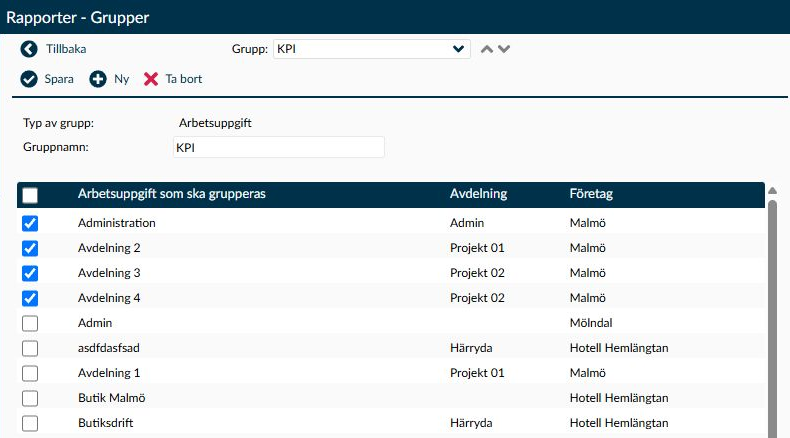
Image 1. The highlighted tasks belong to the group. The Department and Company columns help you distinguish tasks with similar names. The image shows the top part of the list.
On the Groups page, you collect either accounts or tasks to be used together in reports. The group is then selected in one or more Excel templates.
Keep in mind that a group can be used in multiple templates. When you change the content, the source data will be affected the next time someone creates a report from such a template. Therefore, check which templates use the group before you change its selection.
The choice in Type of group determines both which groups you see in the overview and the type assigned to a new group:
- Select Task when the group should gather tasks you want to use together in the report data.
- Select Accounts when the group should collect the accounts an Excel template will fetch values from.
A group contains only one type. Once created, the group type cannot be changed. If you need to collect accounts instead of tasks, you must create a separate group of the correct type.
Enter a name that helps you and other administrators understand which selection the group contains. Group name is mandatory and may contain up to 50 characters. Two groups of the same type cannot have the same name; therefore, check that the name is not already in use among task groups or account groups.
The highlighted rows represent the group’s content. You need to have at least one task or one account selected to save the group.
If you deselect an account or a task and choose Save, the same entry may also be removed from other groups where it is included. This can change the data source in several Excel templates. Therefore, check which groups use the entry before saving. If it should remain in any of those, postpone the change and ask support for help managing it. This warning applies to changing the group’s content, not the Delete button for the entire group.
- In a task group, use the columns Department and Company, when visible, to ensure you mark the correct task. This is especially useful when similar names appear in different parts of the organisation.
- In an account group, select the accounts to include. The accounts themselves are created and modified on the Accounts page; here you only select which of them the group should collect.
- The checkbox in the table header selects or deselects all visible rows. Check the selection afterwards to ensure the group is not larger or smaller than intended.
If a task needs to be created or modified, do so on the Task page. The group’s selection does not replace the task’s own settings.
When you create or change a group, you also need to consider the Excel templates that use it. Check the group type before New and which other groups and templates are affected before Save or Delete.
When creating a group, it is important to start with the correct group type. The choice in the overview follows to the new group.
- Select Task or Accounts under Type of group in the overview.
- Click New. Confirm the type and enter a clear Group name.
- Mark the tasks or accounts to include and choose Save.
- Open the relevant Excel template and check that the group can be selected under Task group or Account groups. A new group must be selected in the template to be used there.
When removing an account or task from an existing group, you need to check more than just the group you have open. The same entry may be part of other groups and removing it can have consequences there as well.
- Check which other groups contain the account or task and which Excel templates use those groups. Note which connections should remain.
- If the entry should remain in another group, postpone Save and ask support for assistance before proceeding. Checking only the open group is not enough to identify the effects on others.
- If the change has already been saved, reopen the affected groups and compare their selections with the intended content. Do not use altered report data further until the group links have been verified.
Deselecting a row is not the same as choosing Delete on the toolbar. The button applies to the entire group and has a separate check of whether the group is still in use.
If an Excel template or another setting uses the group, Timeplan will prevent deletion. It is therefore not enough for the group to have become obsolete for you; the connection where it is used must also be handled.
- First, check which templates use the group and whether their selection should be replaced with another group.
- Change the link where the group is used before trying to delete it again. Also verify that the Excel template still receives the data you need.
- When choosing Delete, check which group the confirmation applies to. Cancel if it is not the group you intended to remove.
- On the Excel templates page, you select task groups and account groups to include in the template’s data source. There are also separate options for individual tasks and accounts, so check the entire template selection when investigating why an entry appears in the report.
- When the group’s content changes, the template’s selection of the group itself remains. The next Excel report from the template uses the changed group content. Therefore, consider all templates that reuse the group, not only the report you are working on.
- If the same account or task is selected both separately and through a group, the same underlying amount can be included in both totals. This also applies to overlapping groups. Do not sum all such report rows as if each amount occurs only once; verify which selections the rows represent first.
- When you use departments and an Excel template combines both task groups and account groups, there is a limitation that can cause rows to be missing or assigned the wrong department. Compare the report’s departments and known values with the source data before using the result. Correct content within the group itself does not guarantee that the combination displays correctly in the report.
- A group that can be saved and selected in an Excel template is not by itself proof that the report can be generated. If the template lacks choices for individual accounts or tasks, report generation can fail even when groups are selected. Ask the responsible administrator to review the template’s overall selection; do not add arbitrary entries just to produce a file, as that changes the data.
Check if the group is still used in an Excel template or another setting. Timeplan stops deletion as long as such a link exists. Replace or remove the connection where the group is used and verify the new selection is correct before trying again.
If you have read permissions to the page, you can review groups but not change names or content. Then New, Save and Delete are also unavailable. Ask an administrator with write permissions to make the changes you need.
First, check the group type. A task group is selected under Task group in the Excel template, while an account group is selected under Account groups. In the group overview, you only see groups of the type chosen under Type of group.