
On the Deviation Reports page, you select a report based on what you want to follow up: planned absence, calculated absence balances, sick leave, manual time stampings, or holiday. The reports use different data sources. Therefore, two reports for the same period may not show the same number or extent.
The reports help you see both individual employees' absences and larger patterns over time. Start by choosing what you want to investigate, then verify the period and selection before generating the results.
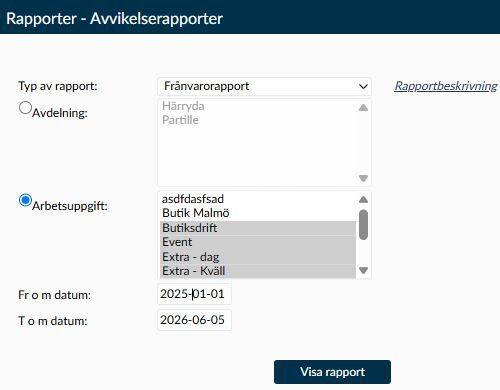
Image 1. The example shows the Absence report. Other report types may show employee selection, deviation codes, or a choice between PDF and Excel.
The report list shows the reports included in your modules and which your administrator account has permission to access. Being able to open the page does not mean that all six reports have to appear in the list.
Absence report, Absence - weekly overview, Deviation per code, Sick leave and Holiday overview belong to the Basic Schedule module. Manually updated time stampings belong to Personnel & Administration. These two module names indicate which reports belong to which module, not a requirement that both are needed for every report.
With Report description you can open a brief explanation of the selected option. Use the explanation to orient yourself, but keep in mind that the reports’ more detailed selection criteria differ as described below.
From date and To date are both included in the reporting period. Previous report selections may be saved for your account. If no such selections exist, the last six days including today are suggested. Therefore, always check the dates; a suggested range may not be the period you intend.
- Department appears for Absence report, Sick leave, and Holiday overview when you use departments. The employees’ links to work tasks then determine which tasks belong to the selection.
- Work task can be used in all six reports. Which work task is counted may come from the employment contract, the time stamping, or the balance, depending on the report. Therefore, read the selection rule for the specific report you are using.
- Employee is available for Deviation per code. When you select an employee, their relevant balances from several work tasks may be included. This is not the same as selecting a specific work task.
- All companies and Without active employment contract may appear when selecting employees for administrators with sufficient company access. Just because a name can be chosen does not guarantee there are balances for the reporting period.
- For Deviation per code the end date must not be later than today's date. You must also specify which deviation codes to include. An empty code selection does not mean all codes.
This report shows full-day and part-day absence registered in the planning. It does not retrieve absences from individual time stampings or calculated account balances. Absence may therefore be shown even on a day without a work shift.
The employee must be active and have an employment contract valid on the absence date, with a primary work task in the selection. The employee being allowed to work the task as an extra option is not enough for this report.
Full-day absence shows the name of the deviation code. If there are work shifts, the report can also show the time from the day’s first shift start to last shift end. This is a time interval, not the net absence time: breaks and gaps between shifts should not be read as absence hours just because they lie within the interval. For part-day absence, the code’s name and the registered extent in time are shown.
Choose Absence - weekly overview when you want to see absence day by day. The report itself uses the heading Absence overview. It is the same report, despite the difference between the selector name and the result title.
The report builds on planned full-day and part-day absences and uses the primary work task in the contract for each date. Unlike the Absence report, it does not have the same restriction to employees currently active. A work shift does not need to exist for the absence to be shown.
- Employees are shown in rows and days in columns, grouped by work task and calendar month. One page contains at most 31 day-columns; the name "weekly overview" does not mean you can only review a week.
- Abbreviations of deviation codes are used in the boxes. If both full-day and part-day absence exist on the same day, the full day is shown above the part day. When part-day absence exists, the whole box may be italicised, including the full-day absence row.
- Sundays and public holidays are marked with red date headings. This marking does not by itself mean the employee was absent.
- Date columns may continue to the end of the month even when your chosen end date is earlier. The later empty boxes do not indicate that employees lack absence outside the reporting period.
Deviation per code uses approved calculated balances for the deviation codes you have selected. It is therefore not a direct list of everything registered in the planning or time stampings. If an event has not yet produced such a balance, it may be missing here even if it appears on another page.
Selecting multiple codes means that balances for any of the codes may be included. The employee does not need to have all the codes. An empty code selection produces no matching results in the current version.
- When you select work task, the work task on the balance is used. When selecting an employee, the chosen employee’s balances from multiple work tasks may be included.
- The report distinguishes between Full-day absence, Part-day absence, and Stamped absence. The classification compares the balance with the planning’s deviation code for the same date. Stamped absence is therefore a category in the report, not proof that the row was retrieved directly from a terminal stamping.
- Balance is the sum in the account’s unit. It is not automatically the number of calendar days between the displayed dates. Time is shown as clock time in PDF and decimal hours in Excel; for example, one and a half hours correspond to 1.5 hours in Excel. Money and other units should be interpreted as their respective units.
- Results are sorted by work task, absence start date, and then employee name. The date controls sorting before the name.
In the current version, multiple separate absences can be merged into one row with first and last date. There may be working days or other absences between them. Check the individual days in the planning and balances before using the date range as a basis for a decision about continuous absence.
Sick leave summarises sick leave in total and broken down by gender and age groups. The chosen work tasks are summed together, not as a separate report section per task.
For scheduled time, it includes employees whose employment contract has the selected work task as primary or allowed extra work task. Then their shifts on other work tasks are also counted, with deductions for breaks. The shift date must fall within both the reporting period and the qualifying contract's valid period.
Example: An employee has an eight-hour shift with a one-hour break on the selected work task and a four-hour shift with a half-hour break on another. If contract and date conditions are met, these shifts contribute a total of ten hours and 30 minutes to the basis.
Percentages answer different questions:
- Total sick leave compares sick leave time with the scheduled time.
- The shares for sick leave under 60 days and from 60 days are compared to total sick leave time, not scheduled time. They describe distribution within sick leave.
- The 60-day limit uses the sick day counter available for each date. The report does not start counting a new sick period from your chosen start date. Day 60 belongs to the longer category.
- Percentages are shown as whole numbers. If the comparison basis is zero or negative, the percentage is left blank; a blank value therefore does not automatically mean zero percent sick leave.
There are further calculation rules important when trying to understand a discrepancy:
- Sick leave time is retrieved from balances on accounts linked to sick leave codes. The report does not use the same requirement for approved balances as Deviation per code. Therefore, the two reports’ totals may not match if compared alone.
- If Calculate planned scheduled time for part-time absence is enabled on the Contract settings page, part-time absence can be added to scheduled time. With a percentage-based extent, the given percentage of weekly working time divided by five is used. If absence is given as a time instead, that time is used. Additions are limited to the actual sick leave time for the day. If no sick leave is registered in planning, there is no such addition.
- From sick day 15, the current report in some cases uses a different calculation: when there is a sick leave marking and a positive weekly working time, the actual sick leave time is replaced by the weekly working time divided by seven per counted date. This may also occur in part-time absence and is then not automatically reduced by the part-time percentage. With 35 hours per week, this calculation is five hours per date. This should not be confused with the separate addition to scheduled time.
- Age groups are under 30 years, 30–49 years, and 50 years or older. The group is based on the year the report is generated minus the birth year, not age on the report's end date or if the birthday in the year has passed. The same historical period can therefore fall into a different age group if the report is run in a later year. Missing birth data falls into the missing age group. Data without specified gender may be included in the total without appearing in the female or male groups.
- Overlapping employment contracts can cause the same basis to be counted multiple times. In the current calculation, sick leave balances on the contract’s last date may also be omitted while the scheduled time for that date is included. Check contract boundaries when results differ around a contract change.
- The percentage is not automatically limited to 100. A high value should be checked against both sick leave and scheduled time basis; it is not in itself proof of equivalent continuous absence extent.
Do not use the report as the sole check of an individual employee’s absence or compensation. Contact Timeplan Support when these calculation differences affect your data, rather than adjusting an employee’s registration to make the percentage look reasonable.
This report shows Name, Number, and Added by. In the result heading, it may be called Manually added time stampings. The number refers to individual stamping entries used and linked to an administrator. It is not the number of worked hours, clock-in and -out pairs, or changes made.
The report period refers to the stamping date, not when someone last corrected it. A stamping for 30 September corrected in October can therefore belong to the September report. The employee must have a contract valid on the stamping date.
The work task on the stamping is used first. If missing, the contract’s primary work task is used. Stampings no longer used are not counted. The Added by field collects the current names of responsible administrators.
The report is not a complete change history. It does not show each stamping’s time, direction, earlier value, or change time. An administrator link decides if the entry counts, so the report alone cannot distinguish everything originally from terminal, app, or import. With overlapping employment contracts, the same stamping can also be counted more than once in the current version. Check contract dates and individual stampings if the number seems too high.
Holiday overview is based on full-day holidays in planning, not on a calculated holiday balance. Part-day holidays are not included. The selection uses the primary work task in the contract on each holiday date; an extra allowed work task does not suffice.
The Number column shows holiday days counted according to contract settings, not necessarily all calendar days between From and To.
- When the contract counts a maximum of five holiday days per week, a marked weekday may be counted even without a work shift. A marked Saturday or Sunday is only counted if fewer than five earlier days in the same calendar week are marked as holiday.
- For other settings, there must be a scheduled day for the marked day to be counted. A range with zero counted days does not appear.
- Previous holiday markings in the same week may affect weekend calculations even if they are before the report’s start date. Only days within the chosen interval contribute to the report’s number.
In the current version, a day without holiday marking can split a holiday period even if the day lacks a work shift. Do not conclude that a break in the report’s period division always means the employee worked. Check planning when periods appear unexpectedly split.
Deviation per code and Holiday overview can be generated as PDF or Excel. Other reports on the page use PDF. In Excel, time values may be decimal hours even when PDF shows hours and minutes. Therefore, compare the meaning and unit of values, not just how the figures look.
Below are explanations of the date picker and the Show report button, so you know what the selection means and what happens when the report is generated.
In the calendar, you can select month, year, and day for the date field you have opened. Always verify both start and end dates after selection. The calendar shows which day has been chosen but does not decide if the period suits the report or payroll control you want to perform.
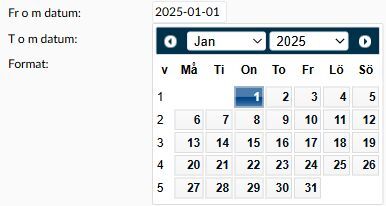
Image 2. The calendar belongs to the open date field. A date choice changes the report selection, not employees’ registrations.
- Select the report type that corresponds to the question you want to answer. Be especially sure whether you need planned absence or calculated balances.
- Check dates, work task, or other organisation selection. Choose an employee if you use that option in Deviation per code.
- Mark relevant deviation codes for Deviation per code. Choose PDF or Excel if the format choice is shown.
- Select Show report and verify selection and period in the results before interpreting the numbers.
The report opens in a new tab or window. Running the report does not correct the data or create new absence records. If the result is wrong, go to the page where the data was registered, correct it there, and then generate a new result. Your report selections can be saved as personal choices.
Absence report, Absence - weekly overview, and Holiday overview fetch absence from planning. Start by checking dates there. Deviation per code uses calculated balances, and the manual time stampings report counts stamping entries. For these checks, you also need the Time stampings and balances page.
In several reports, the primary work task on the dated Employment contract decides if the employee is included. Sick leave’s scheduled time basis may, however, be qualified also via an extra work task and then include shifts on other work tasks. Do not compare reports as if they use a common personnel selection.
On the Deviation codes page, the code’s type and account link govern how absences are calculated. On the Accounts page, among other things, the unit of a balance appears. Check these details when Deviation per code shows a different extent or unit than expected.
Deviation per code requires approved calculated balances for the selected codes. A planning registration alone is therefore not sufficient. Check period, code selection, calculation, and the affected balance before changing the absence.
Reports can use the employee’s primary work task, an allowed extra work task, the time stamping’s work task, or the balance’s work task. Start by comparing the selection rules and the contract on the relevant date. The same name in a filter does not mean all data is being gathered in the same way.
First check period and organisation. For Deviation per code, you also need to select codes and check that approved calculated balances exist. In Holiday overview, a period with no counted days will not be shown. An empty result therefore does not necessarily mean the report function is broken.
Each report has its own module and permission link. Ask an authorised administrator to check both your module and your report permissions. Do not change registrations or contracts to try to make a missing report choice appear.