
On the Leave Requests page, you gather employees' leave requests and decide on each application. Review the period and reason, check how the absence affects staffing, and save your decision. When the request is approved, the leave is entered as absence in the schedule.
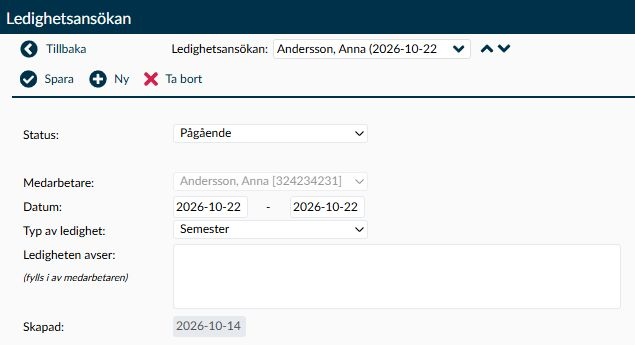
Image 1. The detailed view shows an ongoing request. Here you can review the dates, leave type, and employee’s description before making a decision.
The employee can submit a request from the app. You can also register a new request on behalf of the employee. Both ways create a case to handle; an ongoing request is not itself recorded absence.
Approval, on the other hand, has consequences for scheduling. The selected deviation code is entered as full-day absence during the request’s date range, and relevant data is recalculated. Do not enter the same absence separately simply because the employee has also sent a request.
The Leave Requests icon above the left menu shows the number of ongoing requests awaiting your approval. The number does not correspond to the number of rows in an unfiltered history list. Requests for employees to whom you only have secondary access are not included.
If an approved request is changed back to Ongoing, Rejected, or Cancelled, the matching absence is removed and the schedule is recalculated. Deleting an approved request has the same effect. Always check the schedule before changing status; this action affects more than just the text in the case.
- Show only ongoing requests is checked by default. Uncheck it when searching for a previously processed request. A completed request you have already selected may still be displayed despite the filter, so always check its status.
- Show only department managers is visible to administrators with the approval role Approval Responsible. When selected, the list is limited to employees counted as department managers within your available selection. This does not grant you greater access to other employees.
- The list is initially sorted by status and then by the request’s start date. Created is the date the request was registered, not the first day of leave.
- A blank value in Type of leave may indicate that the code the request refers to is no longer available. Investigate what kind of leave the case concerned before replacing the code.
- Ongoing means the request is still to be handled. A new request receives this status. Dates, leave type, children, and employee description can then be changed by those authorised to handle the case.
- Approved means the leave has been granted and the selected code has been entered as full-day absence during the period.
- Rejected means the request was not granted. If it was previously approved, the matching absence is removed.
- Cancelled is used when the request should no longer apply, for example if the employee no longer requires the leave. The case remains in the history. If the leave was already approved, the matching absence is removed.
- Employee is chosen when you create a request and cannot be changed on an existing request. Therefore, check the person and employee number before saving a new request.
- Dates include both the first and last day of leave. The date pickers are designed for current date up to five years ahead. Check the entire interval, especially if the leave spans a contract change.
- The employee must have an active employment throughout the period. Multiple contracts may be involved, and the chosen leave code must be linked to all of them.
- Type of leave shows the deviation codes that may be used for leave and which are available for the employee on the start date. That a code appears in the list does not guarantee it also exists on a later contract during the period.
- Dates and leave type can be changed while the request is Ongoing. A saved ongoing case is not a final approval: check contracts, codes, and any existing absence again when making a decision.
- If an absence code is already registered on any date within the period, the request cannot be approved as is. Investigate the existing registration before changing the request; do not delete absence solely to bypass the check.
- Children appear if you use child data for absence and the selected code concerns parental leave. The list draws the employee’s children from Relatives/Children.
- Select the child if the leave code requires it. The option - means no child is chosen and is insufficient for a code requiring that information. Upon approval, the chosen child follows the absence registration.
- The leave concerns is the employee’s description of the request. It does not replace the choice in Children, even if the child’s name appears in free text. Use the description for context not already evident from dates and leave type.
- Comment is the administrator’s note. Write a clear explanation of the decision or change to help the employee understand what applies. The comment can be changed even on an already processed case while the page is editable.
- Created shows when the request was registered. Handled by shows the administrator last associated with handling the case. These data are filled in by Timeplan, not by you.
- If you change the comment at the same time as approving or rejecting, the message to the employee will have the title Leave Request Updated. Therefore, read the saved status when you need to verify the decision; the message headline alone does not always describe what was changed.
If you have account groups for imported holiday balances, the balances may appear on new and ongoing requests. Each row is named after its account group.
- Use the balance as support when assessing the request, along with dates and other information. The display itself is not a decision on how much leave should be granted.
- Updated is based on the earliest available date among the included balance data. This does not always correspond to when the last import was run.
- If the balance appears old or unexpected, check the import source with the payroll responsible before drawing conclusions about the employee’s remaining holiday.
This explains the decisions and what you need to follow up on when saving or changing a request.
- Open the request and read the employee’s dates, leave type, and description.
- Check staffing and that employment contracts, leave code and any child information apply for the entire period.
- Choose Approved or Rejected and write a comment if the decision needs explanation.
- Click Save. If asked about copying shifts, you need to decide before approval continues.
- Check the saved status and, after approval, the recorded absence in the schedule.
- Approval uses full-day absence for each date in the interval. This request does not describe absence for only a few hours of a shift.
- Approval can affect shifts and links to staffing requirements. Therefore, check both the absence and staffing when a longer case has been handled.
- A locked payroll period can block approval. Check dates and handling with the payroll responsible. Do not change leave dates just to allow saving if the new dates are not those intended by the employee.
The question Do you want to copy shifts from the employee? appears before approval when Timeplan is set to copy shifts on absence and the request covers at least 16 calendar days. The limit applies to the entire date range, not just the number of days the employee would have worked.
- Read the request’s period and assess how the shifts requiring staffing should be managed.
- Choose Yes if approval should continue with copying the relevant shifts.
- Choose No if the leave should be approved without copying shifts.
- Close the dialog with the close icon if you do not want to proceed with the decision yet.
No therefore does not mean rejecting the leave request. Both Yes and No continue approval but have different effects on shifts. Closing the dialog leaves the request without the new status change and its absence actions.
Use New when you need to register a request on behalf of an employee. Confirm the wish with the person before filling in the details.
- Select New and choose the correct Employee.
- Enter the period and Type of leave, plus Children if the leave type requires it.
- Write a description to help those who will later decide on the request.
- Select Save and check that the request has been registered as Ongoing.
A new request starts as ongoing. The registration therefore does not replace the subsequent decision whether the leave should be granted.
Normally use the Cancelled status when a request should no longer apply. This keeps the case so that it is possible to understand what happened.
- Open the correct request and check if it was previously approved.
- Select Cancelled, explain the change in Comment if needed, and click Save.
- If the request was approved, ensure the related absence has been removed and the schedule is correct.
- Changing from Approved clears the full-day absence with a code matching the request and the child information matching the case. This is not a general clearing of all absence in the period.
- The same reversal of matching absence happens if an approved request is changed to Ongoing or Rejected. Do not use a temporary status change solely to open edit fields without first considering the consequences.
Delete is intended for requests created by mistake. The confirmation reminds you that a request should normally be cancelled instead.
- Verify the person and period before confirming deletion. The entire request is removed, not just the mark in the list.
- If the request is Approved, its matching full-day absence and child link are cleared during the period, and relevant data recalculated. Therefore check the schedule as well.
- Deletion of an approved request is blocked when the period is covered by the current payroll lock. Ask the payroll responsible to assess how such a correction should be handled.
- A completed deletion is recorded in the employee’s event log. Having a log entry does not mean the request can be undone.
When an existing request only changes to Approved or Rejected, a specific message that the leave was accepted or denied is used. If you also change the administrator’s comment, dates or leave type, the message Leave Request Updated is used instead. This message is also used for other successful saves.
- The message uses the employee’s language. It is not necessarily the same language you use in Timeplan.
- Refer the employee to the request in the app to read status and comments. A general update headline does not mean the request is still awaiting a decision.
- Check the saved request if there is uncertainty about the decision. Saving and the employee actually reading the message are different things.
- Employment contracts must cover the entire period. The leave code must be present in all relevant contracts, not just the contract on the start date.
- Deviation codes determine which codes can be used for leave and which require child information.
- Relatives/Children contains the children selectable for the employee.
- Weekly overview shows the scheduling affected by the decision. Ongoing requests must be distinguished from already approved and recorded absence.
- Payroll periods determine which corrections may be made in a closed period. Coordinate such cases with the payroll responsible.
Check that the employee has an active employment throughout the period and that the leave code is linked to all relevant contracts. Also check mandatory child information, existing absence, and payroll lock. Read the error message before changing anything; different causes require different corrections.
A request already selected may be displayed even when Show only ongoing requests is checked. Read the status to determine if it has been handled. Uncheck the filter when you want to see the available history.
If you change, for example, Comment at the same time as approving, the general update message is used. Check the request’s saved status. The message headline does not necessarily mean the approval failed.
Not in the question about copying shifts. There, No means the leave is approved without copying the shifts. Close the dialog if you want to cancel the approval, then return to the request itself to make the proper decision.
Start with Show only ongoing requests and Show only department managers. The list is also limited by which employees you can manage. The number on the shortcut counts ongoing requests you can approve and is therefore not a total for all history.