
On the Work Shifts page, you gather shift templates designed to be reused multiple times in scheduling. A template describes working hours and tasks so you don't have to set up the same shift repeatedly.
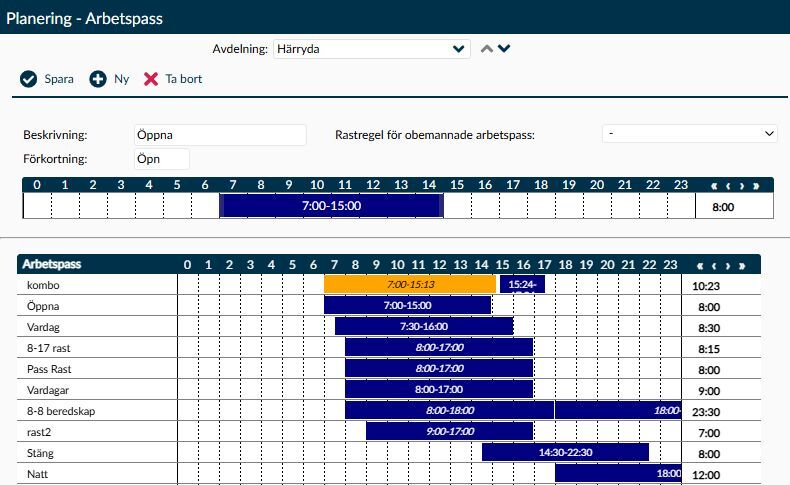
Image 1. The Open shift template has a time interval. Above the list of saved templates, its name, abbreviation and break rule for unattended shifts are shown.
A shift template can contain a single time interval or multiple parts with different tasks. The same template is used when building a recurring schedule or assigning a shift on a specific day. That is why there is a difference between changing the template here and changing a single assigned shift for an employee.
When you save a change here, it is applied to future staffed and unattended shifts that are still linked to the template, starting from the following day. Therefore, verify that the change should apply to all these shifts. A custom choice for break, meal deduction, or collective agreement is also carried over and can result in different outcomes than the employee’s usual contractual rules.
When deletion is allowed, not only the template as a choice disappears, but also linked unattended shifts after today’s date and their messages. Therefore, check future planning before confirming. A template not used in a base schedule or a demand template does not mean it lacks assigned shifts.
Description and Abbreviation help you identify the correct template when scheduling. Both need to be provided and must be unique within the task for the template’s first time interval. If Timeplan indicates the name is already in use, you need to check other templates on that task, even if their times differ.
- Description can include up to 50 characters. Preferably, use a name that also explains an important exception, for example Night without meal deduction if the template explicitly has this option.
- Abbreviation can have up to 10 characters. Choose a short designation familiar in scheduling, but distinguish templates with different rules even if working hours are the same.
Break rule for unattended shifts is used to estimate how much break time should be deducted when no employee is assigned to the shift. In that case, there is no employment contract for a specific employee to base it on. The estimation helps you assess the planned working time before staffing is finalised.
The selectable break rules come from your Timeplan environment; the list is not limited to, for example, half an hour or one hour. When the shift is staffed, the break is calculated based on the employee’s applicable agreement, unless you have made a custom break choice in the time interval. Therefore, distinguish this page’s estimated break from Break in the interval’s dialog, where you can specify an explicit exception.
The template must contain at least one time interval. With multiple intervals, you can describe that the employee will work on different tasks during the day, for example in reception first and then administration later. Tasks are managed on the Task page.
- Intervals are displayed in chronological order. When a part starts after midnight, on the following day, it must connect to the preceding part. Therefore, check not only the times individually but also how the parts relate over the day boundary.
- Show shifts on other tasks enables viewing parts that belong to other tasks you have access to. This helps you understand the entire template when the work is split.
- An older template may still show a task or shift type that has become inactive. The value remaining in the template does not mean it is selectable when adding a new interval. Check which active option to use before continuing to develop the template.
A custom choice for break, meal deduction, or collective agreement applies to the part of the shift where you make the choice. For a divided shift, you must therefore check each interval, not only the first part. The choice follows when the template is used, which is useful for recurring exceptions but inappropriate if you only want to change a certain day for one employee.
The option - has a special meaning in these three lists: it removes the interval’s own choice so that the usual calculation rules apply. It does not mean the same as No break or No meal deduction. The differences are explained under the dialog below.
Here are explanations of buttons, dialogs and messages on the page which have conditions or consequences not evident from the interface.
Double-click an existing interval to open the Work Shifts dialog. Double-clicking an empty part of the timeline instead opens a new interval. Here you determine both the type of time covered by the interval and whether any calculation should deviate from the employee’s usual agreement.
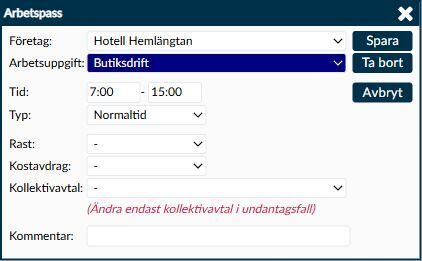
Image 2. When editing an existing interval, time, shift type, break and any custom choices for meal deduction and collective agreements are shown. Save applies first to the interval in the template you are editing.
- Company and Task set where the interval belongs. Company selection affects which tasks and collective agreements can be chosen. The designations may be customised to your organisational structure.
- Time specifies the interval’s start and end. If the interval already begins on the next day, changing times keeps it on that day. Therefore, check the timeline placement after changes.
- Comment belongs to the specific interval and can contain up to 255 characters. Verify that a comment in a reusable template also suits shifts assigned to other employees or dates.
- Type indicates the shift type to be used. Options are sourced from the Shift Types page. The list contains no - to revert to automatic choice: you must always select a shift type. Base your choice on the active options in your environment, not a fixed list from another environment.
- Break lets you differentiate between regular break calculation and an explicit break choice:
- Select - if the interval should not have a custom break length. For staffed shifts, the employee’s applicable break rules then apply.
- Select No break when this interval should have an explicit zero break deduction. This is an exception, not a return to the agreement’s break rule.
- Select one of the available break lengths if a fixed length should apply to the interval. Available lengths depend on your Timeplan environment.
- Meal deduction appears when at least one day profile in your agreements that is not deleted has a meal deduction rule. The list may be shown even if the chosen agreement lacks such a rule. Choosing - removes the interval’s own yes or no choice so that normal conditions apply. No meal deduction is an explicit no, while Apply meal deduction is an explicit yes.
- Collective agreement can be changed if you have permission to Change collective agreement on a work shift for the Clockings and Balances page. This permission also applies here and is managed via Administrator Profiles. Selecting - uses the employee’s applicable agreement for the calculation day. Choosing a named agreement means it applies to the interval instead, without changing the employee’s Employment Contracts themselves.
The message Change collective agreement only in exceptional cases is shown if you have the right to make the agreement choice, even if - is still selected. The text does not itself mean that an agreement has already been replaced. Check the actual value in the list.
When you want to remove an old exception and revert to usual rules:
- Choose - in the affected list for Break, Meal deduction or Collective agreement. Leave other choices if they should still apply.
- Select Save in the dialog. The change is then returned to the template on the page.
- Also check the template’s other intervals. Then choose the page’s Save when the entire template change is intended.
- Verify a relevant future shift after updating, to ensure it has correct times and choices.
The dialog’s Cancel leaves the interval unchanged. When adding a new interval the confirm button is New; for an existing interval it is Save. An existing interval also has Delete, which only removes that part from the template you edit. This is not the same as the page’s Delete, which refers to the entire shift template.
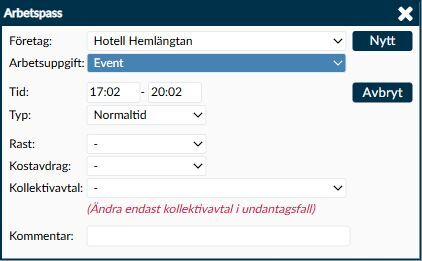
Image 3. A new interval has the same type of selections as an existing one but is confirmed with New. After adding the interval you also need to save the entire shift template on the page.
Here you select a break length, not a start time for the break. If you change the interval’s times or its manual break length, a previously stored break placement is removed. Do not expect a previously exact break time to remain after such a change.
The page’s Save has a broader scope than just saving what you see in the editor. When you change an existing template, future assigned shifts still linked to it are also updated.
- The update applies from the following day onwards and includes both staffed and unattended shifts still linked to the template. There is no specific end date for these already assigned shifts. Shifts from today or earlier are not changed by this template update.
- Shifts detached from the template retain their own details. A manual change to a shift is not enough to exclude it: what matters is whether the link to the template remains.
- After saving the template change, recalculations of break and planned cost are ordered. Normal time is updated for future shifts that are also linked to a base schedule and have an employment contract covering the day. A save message does not mean all this is immediately completed.
- Changes to time intervals can also affect calculations for relevant public holidays and other exception dates in other base schedules on the same dates. Therefore, check actual scheduling if results on such days differ from expected.
If an error occurs after saving, the template change may already have been applied. Therefore, check both the template and affected future shifts before trying to repeat the change. Don't assume an error message always means everything remains unchanged.
If Timeplan blocks the save, read the message before proceeding. Checks include missing description or abbreviation, a template without intervals, a name already used, and a part on the next day that does not connect to the previous part. Changed times may also clash with another future shift for an employee. Resolve the specified issue before trying again.
When you select Delete on the page, the action applies to the entire shift template. Timeplan requests confirmation and checks if the template is still in use.
If the template is included in a base schedule or a demand template that is not deleted, deletion is blocked and the names are shown in the notice. Follow the information about where it is used and assess if the link should be replaced there. Do not remove parts of a functioning schedule only to be able to delete a template.
If deletion is allowed, linked unattended shifts after today’s date are removed together with their intervals and messages. Staffed shifts and shifts on today’s or earlier dates remain. Therefore, also review future unattended scheduling before confirming, not only the list of base schedules and demand templates.
If you only want to change part of the shift, instead work in the time interval’s dialog. There, Delete refers to the interval, not the entire reusable template.
The shift template describes the shift’s content. Other pages determine when it is assigned and who works it:
- On the Base Schedule and Advanced Base Schedule pages, templates are used for recurring schedules. A custom break or agreement choice in the template follows when corresponding shifts are created.
- On the Demand Templates page, templates specify which shifts are needed. Therefore, check those links before removing a template still included in staffing needs.
- In the Weekly Overview and Daily Overview pages, you work with ongoing scheduling. A change to a single assigned shift is not the same as changing the common template here.
When a shift is staffed, usual calculation rules come from the employee’s applicable Employment Contract and the agreement related to their employment. An explicit choice in the interval overrides just that particular setting. Avoid entering custom choices in the template if the intention is for different employees to follow their respective agreements.
An unattended shift, however, lacks a specific employee’s agreement. That is where the page’s estimated break rule serves its own purpose. Selecting - in the interval does not itself create an employment contract to calculate from.
The message The work shift is not included in any base schedule or demand template means that no remaining base schedule or demand template refers to the template. It is information about those two links, not a statement that the template is incorrect.
Staffed or unattended assigned shifts may still exist. The message is therefore not a reason to skip checking future scheduling before deletion.
A change to a shift template is applied to assigned shifts still linked to it, starting from the next day. This applies even if your intention was only to change a shift for one employee. Therefore, check if you were working with the common template or a single assigned shift.
Read Timeplan’s message about where the template is used. A base schedule or demand template still referring to it must be handled before the template can be deleted. If the template is still needed in scheduling, it should remain, even if you no longer use it for new shifts yourself.
Check Break, Meal deduction, and Collective agreement in each time interval. An explicit choice follows with the template and may explain why employees with different agreements still get the same exception.
If the usual rule should apply, choose - for the exception to be removed. Also verify Type, keeping in mind that list does not have a -: the correct shift type must be selected. Then review the relevant future shift after the template has been saved.
The dialog in Weekly Overview has different controls than the interval dialog on this page. It includes Break according to employment agreement and More settings. Here you use Break and the option - to remove a custom break choice.
That other dialog also distinguishes between assigning a shift and creating a template. Add assigns the shift without saving it as a reusable template, while Add and Save also opens the step where the template is named. A shift that has only been added on one day should therefore not be expected to appear as a new template here.
In Advanced Base Schedule clicking the plus on an empty schedule position opens a simpler selector for existing shift templates. This should not be confused with the dialog in Weekly Overview. Selecting a template there places it in the recurring pattern for the schedule.